Normal maps in X-Plane 940 have a funny property: if you flip the normal map horizontally or vertically, the bumps change direction. Things that "stuck out" now "stick in" and vice versa. (If you flip the normal map horizontally and vertically, the two cancel out and the normal map is not reversed.)
You can understand this by thinking of your normal map as a physical piece of metal with bumps punched in it. Flipping it horizontally really means rotating it horizontally to see the other side - now you see the back side of the bumps. Same with the vertical flip. Flip both and you have flipped it twice and it's front-side forward again.
In a move that is either just in the nick of time or dangerously reckless, I have tweaked the normal map shader for 950 RC1 (coming out "real soon") to detect and "fix" a flipped normal. In 950 rc1 the bumps in your normal map will always point in the same direction as the normal of your mesh, even if your UV map is flipped horizontally or vertically.
What does this mean to you, the modeler? It means that you can now mirror your normal map from the left to the right side of the airplane and the normal map will still have the bumps "sticking out" like you want.
I crammed this into 950 RC 1 because it looks like it's a useful change that will restore flexibility to authors making highly detailed airplanes. Mirroring a symmetric airplane (which results in a horizontally mirrored normal map) is a pretty common thing to do, and if the text is applied as decals, this can be a big win in texture space savings.
I figured best to get the tweak in here now so people could take advantage of it. Plus, what's an RC1 without an RC2?
Showing posts with label hacks. Show all posts
Showing posts with label hacks. Show all posts
Friday, April 02, 2010

Thursday, February 14, 2008
Instability in Version 9
One of the reasons why the X-Plane 9 betas have had so many more crash bugs than version 8 is that we introduced loading DSFs on a second core. This feature makes scenery loads much slower and (by using the second core) impacts fps less while they happen.
The problem is that I'm still fumbling with code that will allow this in all cases. (That would be three operating systems, two hardware vendors, and a myriad of drivers, some new, some quite prehistoric.)
Beta 22 will be out soon, and will contain the fourth major rewrite of the OpenGL setup code for X-Plane 9. So far the initial tests look good, but we never know until we let a lot of users try the code and find the new edge cases.
It's relatively easy to tell if your instability is related to the use of OpenGL with threads: simply run the sim with the --no_threaded_ogl option. If things become a lot more stable, it's a threaded GL problem. Mind you --no_threaded_ogl is more of a diagnostic than a workaround; without threaded OpenGL, the sim will pause when loading scenery.
(Also, to clarify, you'll find talk on discussion groups and game forums about "threaded drivers". Threads are a programming abstraction that can utilize multiple cores. What I am talking about is X-Plane using multiple threads to load scenery - in our case this requires interfacing with OpenGL. But a threaded driver is different - it's just a graphics driver that's been optimized for multcore machines. These two concepts are totally different; you don't need a threaded driver to use X-Plane 9, and a threaded driver won't make X-Plane 8 load without pauses.)
The problem is that I'm still fumbling with code that will allow this in all cases. (That would be three operating systems, two hardware vendors, and a myriad of drivers, some new, some quite prehistoric.)
Beta 22 will be out soon, and will contain the fourth major rewrite of the OpenGL setup code for X-Plane 9. So far the initial tests look good, but we never know until we let a lot of users try the code and find the new edge cases.
It's relatively easy to tell if your instability is related to the use of OpenGL with threads: simply run the sim with the --no_threaded_ogl option. If things become a lot more stable, it's a threaded GL problem. Mind you --no_threaded_ogl is more of a diagnostic than a workaround; without threaded OpenGL, the sim will pause when loading scenery.
(Also, to clarify, you'll find talk on discussion groups and game forums about "threaded drivers". Threads are a programming abstraction that can utilize multiple cores. What I am talking about is X-Plane using multiple threads to load scenery - in our case this requires interfacing with OpenGL. But a threaded driver is different - it's just a graphics driver that's been optimized for multcore machines. These two concepts are totally different; you don't need a threaded driver to use X-Plane 9, and a threaded driver won't make X-Plane 8 load without pauses.)
Friday, March 16, 2007
Stupid Command Line Tricks
If you have a dual core Intel Mac, OS X 10.4.9, X-Plane 8.60 and an Intel Graphics chip, try running the sim with this command-line option:
--use_threaded_ogl
You can read about how to use X-Plane with command-line options here.
--use_threaded_ogl
You can read about how to use X-Plane with command-line options here.
Saturday, October 07, 2006
Stupid Laptop Tricks
First a disclaimer: DO NOT SHAKE YOUR LAPTOP!!! If you shake or thrash your laptop and kill yor hard drive, do not blame me. Laptops are delicate complex electronic devices and should not be jostled, beaten, dropped, abused, or tossed around.
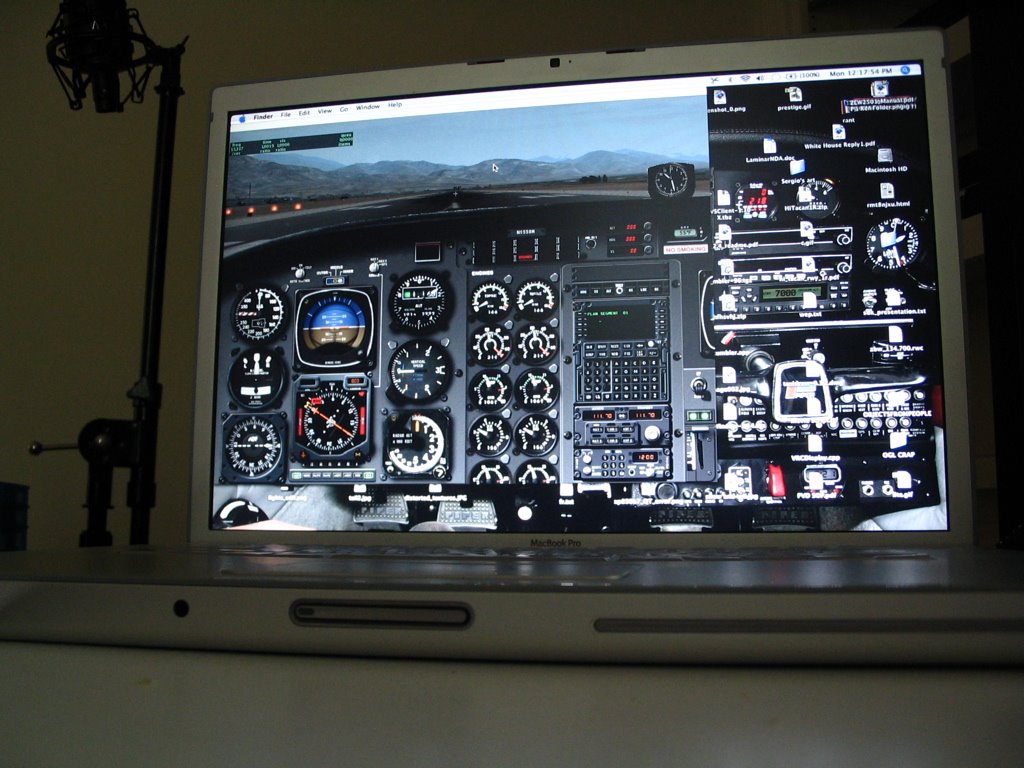
Okay with that out of the way, a stupid plugin trick. This is only for Mac users with a MacBook, MacBook Pro, or possibly some of the newer G4 laptops (although I haven't tested on these).
First, download "SMSHack.xpl". Unzip it and drag the .xpl file into your plugins folder.
Start X-Plane. In an external view, rotate your laptop about 45 degrees to the left and right and 45 degrees up and back. this calibrates "SMSHack" to know the orientation of your computer. You must do this calibration every time you use SMSHack.
Then: fly using your laptop like a yoke. Roll your laptop to roll the plane, and pitch the laptop to climb and descend. Disable the plugin to get normal joystick control back.
How it works: I use a library called Unimotion. (Hrm..it's LGPL...well, source is here then.) Unimotion reads the SMS (sudden motion sensors) on modern Mac laptops. These are three accelerometers that the Macintosh can use to detect it has been dropped; the operating system will try to park the hard drive heads to prevent a disk failure on impact.
Because gravity is a constant acceleration on the laptop, the accelerometers can be used to detemrine the roll and pitch of the laptop. This plugin simply shovels the relative accelerations into the joystick deflections.
Okay with that out of the way, a stupid plugin trick. This is only for Mac users with a MacBook, MacBook Pro, or possibly some of the newer G4 laptops (although I haven't tested on these).
First, download "SMSHack.xpl". Unzip it and drag the .xpl file into your plugins folder.
Start X-Plane. In an external view, rotate your laptop about 45 degrees to the left and right and 45 degrees up and back. this calibrates "SMSHack" to know the orientation of your computer. You must do this calibration every time you use SMSHack.
Then: fly using your laptop like a yoke. Roll your laptop to roll the plane, and pitch the laptop to climb and descend. Disable the plugin to get normal joystick control back.
How it works: I use a library called Unimotion. (Hrm..it's LGPL...well, source is here then.) Unimotion reads the SMS (sudden motion sensors) on modern Mac laptops. These are three accelerometers that the Macintosh can use to detect it has been dropped; the operating system will try to park the hard drive heads to prevent a disk failure on impact.
Because gravity is a constant acceleration on the laptop, the accelerometers can be used to detemrine the roll and pitch of the laptop. This plugin simply shovels the relative accelerations into the joystick deflections.
Thursday, October 05, 2006
A Tale of Three Operating Systems
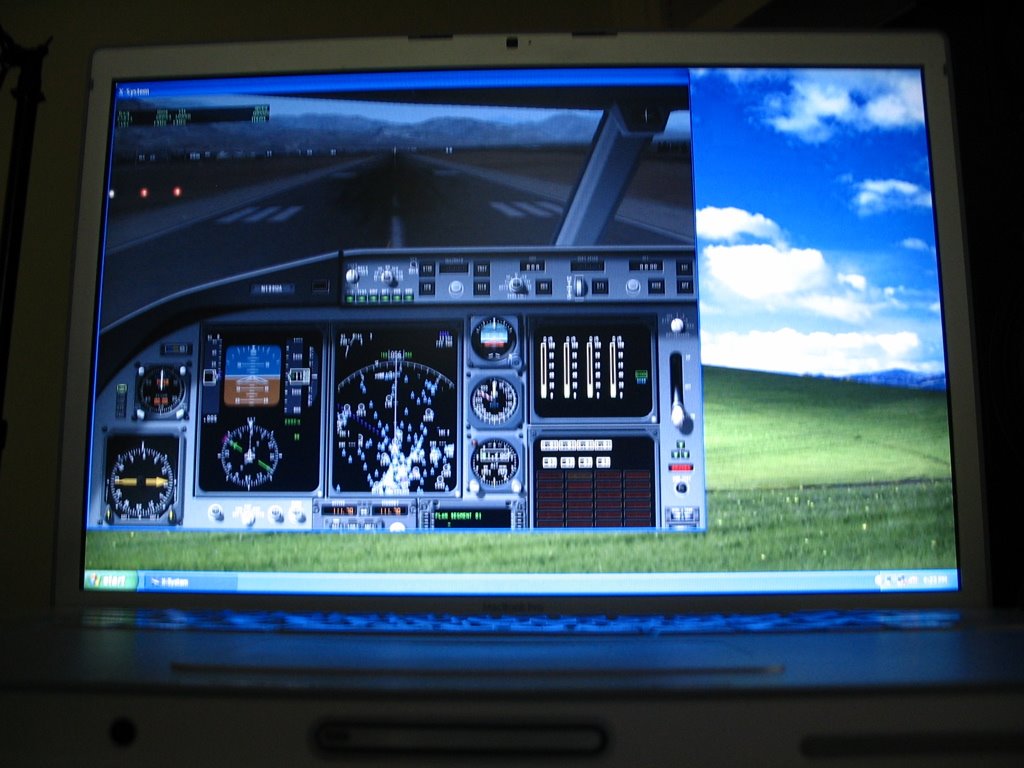
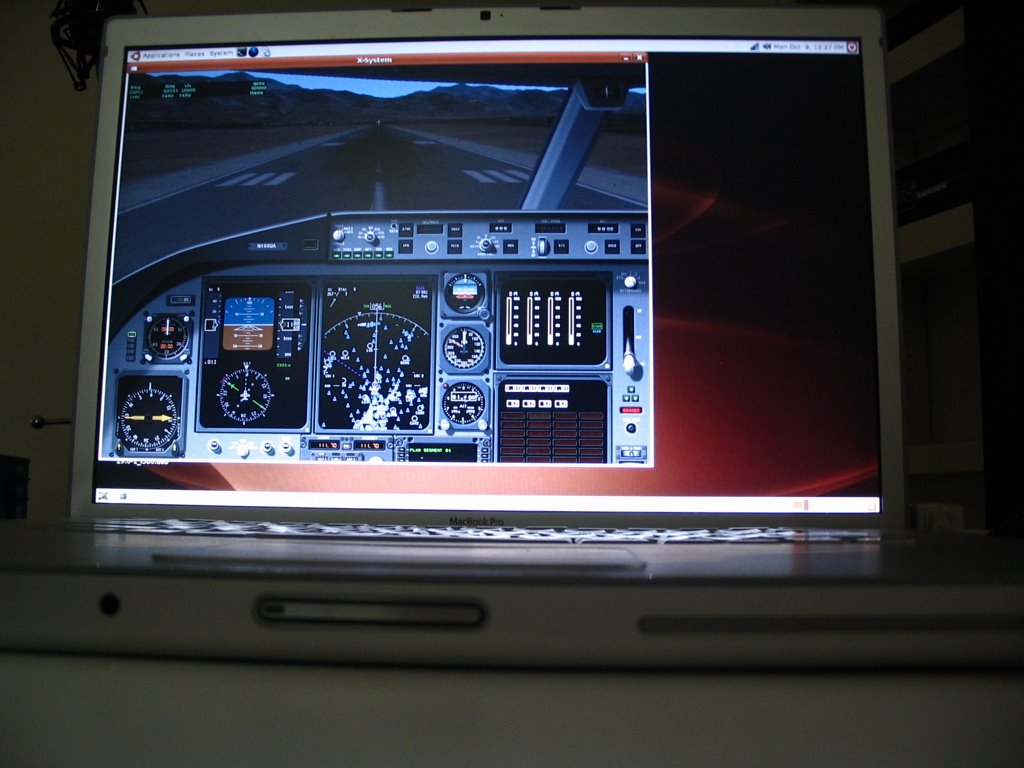
In a vain and foolish attempt to prove that I am the uber-nerd, I have configured my MacBook Pro to boot Mac OS X 10.4, Windows XP Home SP2, and Ubuntu Linux 6.06. It took a while to get everything set up, but all three now run X-Plane with hardware acceleration.
This provides a unique chance to compare the performance of the sim varying old operating-system factors (the OS, the drivers, and the compiler). The machine is a 2.16 ghz DuCore MacBook Pro with 2 GB of RAM and a 256 MB ATI X1600 card.
So without further delay, here are the numbers. Speed is in fps for frame-rate tests 1-3 (1 is lowest settings, 3 is very very aggressive). Each set of fps is for panel view, forward-no-HUD view, and the same view paused. Load times are in seconds for the KSBD demo DSF. The second load time is to reload the same scenery - the times are much faster on all 3 OSes because of the disk cache.
Drivers are not tweaked; this is simply the ATI binary drivers for Linux, whatever Apple ships in BootCamp (some 2.0 series ATI drivers) for Windows, and the 10.4.8 drivers for Mac, none tweaked in any way at the OS/control panel level. For Linux I disabled VBOs because they cause graphic corruption in some cases and slow frame-rate. This is probably a Linux/ATI driver bug.
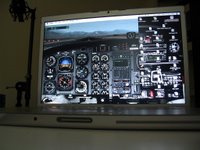
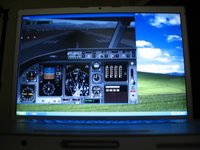
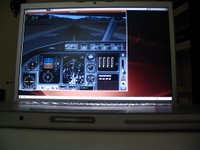
This provides a unique chance to compare the performance of the sim varying old operating-system factors (the OS, the drivers, and the compiler). The machine is a 2.16 ghz DuCore MacBook Pro with 2 GB of RAM and a 256 MB ATI X1600 card.
So without further delay, here are the numbers. Speed is in fps for frame-rate tests 1-3 (1 is lowest settings, 3 is very very aggressive). Each set of fps is for panel view, forward-no-HUD view, and the same view paused. Load times are in seconds for the KSBD demo DSF. The second load time is to reload the same scenery - the times are much faster on all 3 OSes because of the disk cache.
Drivers are not tweaked; this is simply the ATI binary drivers for Linux, whatever Apple ships in BootCamp (some 2.0 series ATI drivers) for Windows, and the 10.4.8 drivers for Mac, none tweaked in any way at the OS/control panel level. For Linux I disabled VBOs because they cause graphic corruption in some cases and slow frame-rate. This is probably a Linux/ATI driver bug.
PLATFORM Mac WIN LINUXAnalysis:
Load/Reload 2.77/1.31 5.02/1.33 3.05/1.04
FPS Test 1 65/71/80 64/69/88 56/62/62
FPS Test 2 49/55/54 50/56/56 34/37/37
FPS Test 3 15/15/15 16/16/16 4/4/4
- The Mac has the fastest disk performance; both Mac and Linux are significantly faster than Windows in raw loading. For reloading a file all operating systems are about the same, but it's the load-without-cache case that counts.
- Windows has the highest frame-rates; slightly faster than Mac but quite a bit more than Linux. The lack of safe VBOs on Linux could account for this.
- In the case where the fps didn't rise when the sim was paused, the limitation is with the video card - not surprising for tests 2 and 3 where there's a lot of antialiasing, anisotropic filtering, and objects.
HOWTO: Use Command-Line Options in X-Plane
Normally you just double-click X-Plane to launch the sim. But X-Plane 850 has some hidden command-line options. We provide these for in-field debugging; if you hit a problem such as a bad video driver you can trigger special options within the sim that aren't exposed in the settings dialog boxes.
Macintosh Users:
To run X-Plane using command-line arguments, you must launch X-Plane using terminal.
Windows Users:
To Lauch X-Plane from a DOS prompt you will have to...
Linux Users:
X-Plane can be launched like any other command-line tool; you may need to prefix it with ./ if you don't have the current working directory in your search paths. For example:
Command Line Options
Generally X-Plane command line options have full names and two dashes. Some require parameters, as in =1. Order does not matter and you can use as many options as you want. Some examples (simplifying the application name, which varies by version and OS):
Some Typical Examples
A number of drivers crash when X-Plane uses VBOs, particularly on Linux. If you can run every application except X-Plane itself, you may want to try:
Macintosh Users:
To run X-Plane using command-line arguments, you must launch X-Plane using terminal.
- Open the utility "Terminal"; it can be found in the Utilities folder (within the Applications folder). Terminal gives you a command-prompt.
- Drag your X-Plane application into the terminal window. The command line will list the names of all of the folders leading to your copy of X-Plane using / for directories. All spaces will be preceded by \ characters.
- Delete the extra space at the end and add the following to the command-line:
Contents/MacOS/X-Plane
- After the word X-Plane you can include command-line options.
This would launch X-Plane 850 RC-3 (in the X-Plane 850 folder of my hard drive "GIS") using the --no_sprites option./Volumes/GIS/X-Plane\ 8.50\ RC-3/X-Plane\ 850\ RC-3.app/Contents/MacOS/X-Plane --no_sprites
Windows Users:
To Lauch X-Plane from a DOS prompt you will have to...
- Pick "Run..." from the Start menu. Type cmd (3 letters) for the name of the program and press return. This will open up a DOS prompt.
- Type cd and a space and then drag your X-Plane folder into the DOS prompt window (the full path of the file will be typed). Press return. This will move your command prompt to the X-Plane directory.
- Drag the X-Plane application into the DOS prompt window. You will see its full name in quotes including the hard disk and directories separated by back-slashes.
- You can then add any additional command-line options.
(It is necessary to change directories on Windows to make sure that Log.txt and other files are put in the right place. On Mac these files always end up in the X-System directory.)"X-Plane 850 RC-3.exe" --fps_test=1
Linux Users:
X-Plane can be launched like any other command-line tool; you may need to prefix it with ./ if you don't have the current working directory in your search paths. For example:
On my distribution (Ubuntu with GNOME, stop your snickering!) it is not possible to simply drag the application into a terminal because the spaces in the file paths will not be properly escaped.cd /home/bsupnik/X-Plane\ 8.50\ RC-3/
LD_PRELOAD=/usr/lib/libalut.so ./X-Plane-i586 --fps_test=1 --require_fps=20
Command Line Options
Generally X-Plane command line options have full names and two dashes. Some require parameters, as in =1. Order does not matter and you can use as many options as you want. Some examples (simplifying the application name, which varies by version and OS):
Rather than document the options here, use the --help option to list all command-line options in the current version of X-Plane.X-Plane --no_sprites
X-Plane --fps_test=2 --no_pixel_counters
Some Typical Examples
A number of drivers crash when X-Plane uses VBOs, particularly on Linux. If you can run every application except X-Plane itself, you may want to try:
Some drivers cause texture corruption when hardware-accelerated runway lights are used; you can work around this with:X-Plane --no_vbos
EDIT: the Windows version won't show the --help string in the DOS window by default, but StormRunner pointed out to me that you can do this:X-Plane --no_sprites
which routes the output to the DOS window."X-Plane.exe" --help | more
Subscribe to:
Posts (Atom)