Just a gentle reminder: please do not consider anything in a beta to be final!
By this I mean: there is a risk that file formats that are new to the current sim (860) could further change during the current (860) beta run.
So...if you are working on scenery that depends on new 860 features, please do not ship your final scenery until 860 is finished! This way you can be sure you're compatible with the final formats.
If your scenery uses 850 features and 860 breaks them, please report a bug, as 860 should handle any legal scenery that 850 handles.
(This goes for plugin datarefs too!)
Tuesday, December 26, 2006

Wednesday, December 20, 2006
Logitech Joystick - Framerate Fix
I found the reason for frame-rate loss for Logitech sticks...everything in this entry is Mac specific.
X-Plane has (for a long time) done a rather poor job of parsing the HID descriptors that
the driver provides for USB joysticks on OS X. However it turns out that in the case of Logitech, after we found the 4 axes the joystick usually has (pitch, roll, yaw and throttle) we then went on to misparse a bunch of strange stuff at the end of the stick as more axes. It turns out that reading those axes causing some kind of huge framerate loss. I don't fully understand this, but given the HID spec I've seen I'm not hugely surprised.
Why is this x86-Mac specific? I don't know! Why is this so much worse in 860? Well, in 860 we raised the number of axes from 6 to 8. With more axis slots, we tried to read more incorrect parts of the logitech stick, for more fps loss.
The solution is one that's been a long time coming: I've rewritten a bit of our Mac HID-parsing code to do a better job of figuring out what's a joystick element and what's not.
The bad news is: for the next few betas there may be some broken joysticks. If you have a joystick and it stops working in the next beta, please file a bug and include as much specific info about your joystick as you can.
The good news is: I think we will get almost all of the fps back on x86 Macs - Logitech users will not need to get new sticks.
A side effect is that we should no longer have "dead" slots - that is, buttons and axes that didn't do anything. This should allow you to use more of your X-52 if you have one.
X-Plane has (for a long time) done a rather poor job of parsing the HID descriptors that
the driver provides for USB joysticks on OS X. However it turns out that in the case of Logitech, after we found the 4 axes the joystick usually has (pitch, roll, yaw and throttle) we then went on to misparse a bunch of strange stuff at the end of the stick as more axes. It turns out that reading those axes causing some kind of huge framerate loss. I don't fully understand this, but given the HID spec I've seen I'm not hugely surprised.
Why is this x86-Mac specific? I don't know! Why is this so much worse in 860? Well, in 860 we raised the number of axes from 6 to 8. With more axis slots, we tried to read more incorrect parts of the logitech stick, for more fps loss.
The solution is one that's been a long time coming: I've rewritten a bit of our Mac HID-parsing code to do a better job of figuring out what's a joystick element and what's not.
The bad news is: for the next few betas there may be some broken joysticks. If you have a joystick and it stops working in the next beta, please file a bug and include as much specific info about your joystick as you can.
The good news is: I think we will get almost all of the fps back on x86 Macs - Logitech users will not need to get new sticks.
A side effect is that we should no longer have "dead" slots - that is, buttons and axes that didn't do anything. This should allow you to use more of your X-52 if you have one.
Thursday, December 14, 2006
A Change in Settings - 3-d Lights
For X-Plane 860 beta 6 I think we may change the way the airport lights setting works. Since
(despite my previous rantings) there is a lot of discussion of performance based on settings (e.g. "I used to get 40 fps with this menu pick, now I need this other menu pick") as opposed to based on what the sim is actually doing, allow me to go off in some detail about what's going on under the hood.
During X-Plane 850 and 860, I tried to fix a number of long-standing "quality" issues, where the sim had small artifacts. There is a fps penalty to fixing these artifacts that I thought was small, but the message is clear:
X-Plane 840 and earlier
In X-Plane 840, lights could be textured or untextured. This was controlled by a simple checkbox "draw textured lights". A few lights (on the airplane, for example) were always textured because we thought they were few in number and important visually. The rest was decided by the checkbox.
No airport light ever had a 3-d "structure" (e.g. you couldn't see the light housing and support rod).
No light was ever drawn using hardware acceleration, even if the graphic card had pixel shaders; we simply didn't have the code. Therefore textured lights ate up a lot of CPU power and thus ate up a lot of framerate. But life was simple!
X-Plane 850
With X-Plane 850 things got a lot weirder.
X-Plane 860
With the next X-Plane 860, we're going to use this checkbox to control multiple aspects of the sim, but always with two choices: either prioritizing visual quality, or prioritizing framerate.
So this option will not only pick the fastest (or nicest) light code and turn the objects on and off, but it will also, for example, turn on or off per-pixel fog (something that looks nice but is slower than the old per-vertex fog).
I'm not sure everyone will like this, but I think it will meet some important needs:
(despite my previous rantings) there is a lot of discussion of performance based on settings (e.g. "I used to get 40 fps with this menu pick, now I need this other menu pick") as opposed to based on what the sim is actually doing, allow me to go off in some detail about what's going on under the hood.
During X-Plane 850 and 860, I tried to fix a number of long-standing "quality" issues, where the sim had small artifacts. There is a fps penalty to fixing these artifacts that I thought was small, but the message is clear:
- Some users are flying X-Plane on lower-end systems and can't spare a single fp.
- A lot of users really don't care about the quality issues and would gladly trade back the visual "improvement" (which doesn't seem like an improvement after living with the issue for 4 years) for those few fps that mean the difference between clear skies and fog.
X-Plane 840 and earlier
In X-Plane 840, lights could be textured or untextured. This was controlled by a simple checkbox "draw textured lights". A few lights (on the airplane, for example) were always textured because we thought they were few in number and important visually. The rest was decided by the checkbox.
No airport light ever had a 3-d "structure" (e.g. you couldn't see the light housing and support rod).
No light was ever drawn using hardware acceleration, even if the graphic card had pixel shaders; we simply didn't have the code. Therefore textured lights ate up a lot of CPU power and thus ate up a lot of framerate. But life was simple!
X-Plane 850
With X-Plane 850 things got a lot weirder.
- We rewrote the lighting engine to optionally use pixel shaders if present. This improves performance of textured lights a lot. In fact, on a given machine with pixel shaders, textured lights with hardware acceleration are faster than non-textured lights without hardware acceleration. (For hardware accelerated lights, the texturing doesn't cost anything compared to hardware accelerated untextured lights.) It's important to note this performance fact!
- Sergio created a bunch of 3-d object lighting fixtures for the runway environment. They have a low LOD, but up close you can see the actual lighting structure.
- Checkbox off, no pixel shaders: we draw untextured lights using software, no objects.
- Checkbox off, with pixel shaders: we draw textured lights using hardware, no objects.
- Checkbox on, no pixel shaders: we draw textured lights using software, with objects.
- Checkbox on, with pixel shaders: we draw textured ilghts using hardware, with objects.
X-Plane 860
With the next X-Plane 860, we're going to use this checkbox to control multiple aspects of the sim, but always with two choices: either prioritizing visual quality, or prioritizing framerate.
So this option will not only pick the fastest (or nicest) light code and turn the objects on and off, but it will also, for example, turn on or off per-pixel fog (something that looks nice but is slower than the old per-vertex fog).
I'm not sure everyone will like this, but I think it will meet some important needs:
- It will make it obvious how to set the checkbox. Either you want speed, or quality.
- It keeps the config interface simple for new users.
- It gives us a way to tie in a number of small optimizations that add up when taken in concert.
Doing the Numbers
I think the framerate test may be the best piece of code I've ever written for X-Plane. It speeds up my own work checking X-Plane's performance (and removes the risk of careless error), allows us to easily collect user-based stats, and has changed the dialog on performance in the beta from he-said/she-said (the result of having no precise quantitative measurements) to a fact-based dialog box where we can discover problems more quickly.
Today in a noble sacrifice (using this card is nothing less than torture) I put a GF-FX5200
back in my G5 to look at bugs and performance. (The terrain night lighting and landing lights should be back in all nVidia hardware with shaders in the next beta.) Some things I've learned:
Turning off GLSL shaders boosts fps from 46 to 55 fps with my Radeon 9600XT but goes from 22 to 45 fps with the FX5200. From that we can learn:
Other things I've found:
If you have an FX5200 and OS X 10.3, there may not be any benefit to updating to 10.4 - you'll have the option of using GLSL shaders but you may not want to.
If you have a G5 and an FX5200 and the option to put a new card in, you may want to consider it - you'll almost certainly get a fps boost (especially if you use something like an X850).
Today in a noble sacrifice (using this card is nothing less than torture) I put a GF-FX5200
back in my G5 to look at bugs and performance. (The terrain night lighting and landing lights should be back in all nVidia hardware with shaders in the next beta.) Some things I've learned:
Turning off GLSL shaders boosts fps from 46 to 55 fps with my Radeon 9600XT but goes from 22 to 45 fps with the FX5200. From that we can learn:
- The penalty for GLSL shaders is really really high on the FX5200.
- The shader implementation for the FX5200 just doesn't run at the same speeds we see in R300-based cards...it's not in the ballpark.
Other things I've found:
- GLSL shaders are slower on terrain, but still worth it for runway lights - having those be hardware accelerated is definitely a positive.
- Per-pixel fog doesn't affect fps on the 9600XT but is a measurable penalty on the FX5200.
- The landing light also hits the FX5200 about 20% - again it's negligible on the 9600XT.
If you have an FX5200 and OS X 10.3, there may not be any benefit to updating to 10.4 - you'll have the option of using GLSL shaders but you may not want to.
If you have a G5 and an FX5200 and the option to put a new card in, you may want to consider it - you'll almost certainly get a fps boost (especially if you use something like an X850).
Monday, December 11, 2006
Musings on Framerate (Just a Test)
I will admit...this post is really just a test to see if the blog is still working. I just got my blogs moved to the new "blogger beta" so I want to make sure the feed still works.
One user posted this comment in response to my rant on framerate...
"What I wonder in X-Plane and FS2k4 as well is, why there is no better automatic regulation which automatically set object density, object quality and so on based on the current frame rate...."
This is a good idea that has been suggested before. However when I tried it, it worked very poorly for two reasons:
Other comments reflected users either hoping for more fps from existing hardware (there's a lot of that on X-Plane.org) or saying that X-Plane runs well on their modern shiny computer.
Here's some stats for you:
The difference between the speed of the smallest and biggest graphics cards is over 15x for fill rate and over 25x on memory bandwidth! That's the equivalent of people trying to run with a 3 ghz and a 120 mhz CPU! Anyone running with a 120 mhz Pentium out there? Definitely not - our minimum CPU requirements are ten times that.
In other words, the high rate of technology improvement in graphics cards has left us with a ridiculously large gap in card performance. (In fact the real gap is a lot worse - the 9200 and 5200FX are not even close to the slowest cards we support, and I haven't even mentioned the new GeForce 8 series, or pairings of two cards via SLI or Crossfire.)
* Pixel or texel? Technically a texel is a pixel on a texture, at least by some definitions, but perhaps more important is that these numbers indicate fill rate at 1x full-screen anti-aliasing...you would expect them to fill screen pixels at roughly 1/16th the speed at 16x FSAA. This is actually good - it means that FSAA can help "absorb" some of the difference in graphics power, making X-Plane more scalable.
One user posted this comment in response to my rant on framerate...
"What I wonder in X-Plane and FS2k4 as well is, why there is no better automatic regulation which automatically set object density, object quality and so on based on the current frame rate...."
This is a good idea that has been suggested before. However when I tried it, it worked very poorly for two reasons:
- Because we reduce visibility as well when fps fall, if we also tie object density/distance to framerate, then we have two separate variables responding to framerate. The result was oscillations. Think of framerate and visibility as a (hopefully) dampened oscillator. With two variables, getting the oscilation out is a lot harder.
- the relationship between object density as the sim controls it and framerate is not a static one, because object density (relative to other scenery complexity) varies a huge amount with locale. In the mountains, backing down objects won't save your framerate. In the city it will. So coding the "spring factor" for that oscillator is very difficult.
Other comments reflected users either hoping for more fps from existing hardware (there's a lot of that on X-Plane.org) or saying that X-Plane runs well on their modern shiny computer.
Here's some stats for you:
- Radeon 9200: 1000 MT/sec 6.4 GBi/sec
- GeForce 5200 FX (64-bit version): 1000 MT/sec 2.7 GBi/sec
- Radeon X1950XTX: 10,400 MT/sec and 64 GBi/sec
- GeForce 7900 GTX: 15,600 MT/sec and 51.2 GBi/sec
The difference between the speed of the smallest and biggest graphics cards is over 15x for fill rate and over 25x on memory bandwidth! That's the equivalent of people trying to run with a 3 ghz and a 120 mhz CPU! Anyone running with a 120 mhz Pentium out there? Definitely not - our minimum CPU requirements are ten times that.
In other words, the high rate of technology improvement in graphics cards has left us with a ridiculously large gap in card performance. (In fact the real gap is a lot worse - the 9200 and 5200FX are not even close to the slowest cards we support, and I haven't even mentioned the new GeForce 8 series, or pairings of two cards via SLI or Crossfire.)
* Pixel or texel? Technically a texel is a pixel on a texture, at least by some definitions, but perhaps more important is that these numbers indicate fill rate at 1x full-screen anti-aliasing...you would expect them to fill screen pixels at roughly 1/16th the speed at 16x FSAA. This is actually good - it means that FSAA can help "absorb" some of the difference in graphics power, making X-Plane more scalable.
Monday, December 04, 2006
This One Goes to 11
If I could have a nickel for every time a user has asked me "what machine do I have to buy so that I can max out all of the settings in X-Plane"...
The problem is simple and two-fold:
The Maximum Limits
Some of X-Plane's maximum settings are design limitations. For example, your anti-aliasing can't exceed your card's capabilities, and the visibility can't exceed the loaded area of scenery.
Other limits are based on algorithmic limitations - there are as many objects in New York City as we could possibly pack in. We figure you can always turn down object density if there are too many.
Still other limits are based on guesses about hardware. We could have made the mesh or less complex - we chose a mesh complexity for the global scenery that we thought would be a reasonable compromise in frame-rate and quality for the v8 run based on typical hardware. This is just a judgement call.
So...how big of a computer do you need to run X-Plane with maximum objects? I have no idea! We honestly didn't give it any consideration. Our strategy was:
And I would go a step further and say it's a good thing that the maximum density of objects is very high. When Randy (our sales/support/marketing guy) got a new PC, a very nice one, but not even the most ridiculous gaming box possible (and this was months ago) he reported that on the default settings he can fly the Grand Canyon at...283 fps!
My point is that the hardware keeps getting faster and we can't predict where it will go. So it seems like a safe bet to leave the maximum settings very high for future users.
So How Insane is Insane
The other problem is that rendering settings don't correspond well to machine power. I can't tell you that a 3 ghz CPU can handle "tons" of objects. The problem is that hardware performance is a composite of a number of subsystems, and scenery complexity varies by region and even by view angle.
Even the slightest change in camera angle can have a pretty big effect on performance. Combine that with different types of scenery elements (objects in some, beaches in other, mountains in others) in different regions and it becomes very difficult to predict how well scenery wil work on a given computer.
A Good Value
Given all this, we don't try to come up with correlations between the settings and the hardware. Instead we simply try to make X-Plane run as efficiently as we can, and try to verify that you get a "good value" - that is, a lot of graphic quality relative to the power of your computer. We have to trust that you'll buy as much computer as you want and/or can afford, and we try to give you the best look we can for it.
So if you are shopping for a new computer, you can go for the "Rolls Royce" strategy, where cash is no object and you maximize every component (even if paying a huge premium for brand new technology) or you can go for a "good value" strategy, trying to find the best price-per-performance points.
I'll close this off with a few tips on buying:
The problem is simple and two-fold:
- X-Plane's maximum rendering settings can sink even the biggest computers. Why is X-Plane's maximum so "overbuilt"?
- The rendering settings are not good predictors of performance. Why the hell not?
The Maximum Limits
Some of X-Plane's maximum settings are design limitations. For example, your anti-aliasing can't exceed your card's capabilities, and the visibility can't exceed the loaded area of scenery.
Other limits are based on algorithmic limitations - there are as many objects in New York City as we could possibly pack in. We figure you can always turn down object density if there are too many.
Still other limits are based on guesses about hardware. We could have made the mesh or less complex - we chose a mesh complexity for the global scenery that we thought would be a reasonable compromise in frame-rate and quality for the v8 run based on typical hardware. This is just a judgement call.
So...how big of a computer do you need to run X-Plane with maximum objects? I have no idea! We honestly didn't give it any consideration. Our strategy was:
- Make sure the maximum object density the renderer would produce would not exceed our disk space/DVD allocations. It didn't...because objects are only in cities, they contribute only a tiny fraction to the size of global scenery.
- Make sure that we could turn object density up and down easily.
- Ship it!
And I would go a step further and say it's a good thing that the maximum density of objects is very high. When Randy (our sales/support/marketing guy) got a new PC, a very nice one, but not even the most ridiculous gaming box possible (and this was months ago) he reported that on the default settings he can fly the Grand Canyon at...283 fps!
My point is that the hardware keeps getting faster and we can't predict where it will go. So it seems like a safe bet to leave the maximum settings very high for future users.
So How Insane is Insane
The other problem is that rendering settings don't correspond well to machine power. I can't tell you that a 3 ghz CPU can handle "tons" of objects. The problem is that hardware performance is a composite of a number of subsystems, and scenery complexity varies by region and even by view angle.
Even the slightest change in camera angle can have a pretty big effect on performance. Combine that with different types of scenery elements (objects in some, beaches in other, mountains in others) in different regions and it becomes very difficult to predict how well scenery wil work on a given computer.
A Good Value
Given all this, we don't try to come up with correlations between the settings and the hardware. Instead we simply try to make X-Plane run as efficiently as we can, and try to verify that you get a "good value" - that is, a lot of graphic quality relative to the power of your computer. We have to trust that you'll buy as much computer as you want and/or can afford, and we try to give you the best look we can for it.
So if you are shopping for a new computer, you can go for the "Rolls Royce" strategy, where cash is no object and you maximize every component (even if paying a huge premium for brand new technology) or you can go for a "good value" strategy, trying to find the best price-per-performance points.
I'll close this off with a few tips on buying:
- If you are buying a new computer, be sure you have a PCIe 16x slot! Any decent motherboard should come with this -- if it doesn't, you're not getting a good computer. A PCIe 16x slot for the grahpics card shouldn't raise prices too much.
- Get 1 GB of memory minimum - X-Plane will run with less, but it helps, and memory isn't that expensive these days. A new computer will be fast enough that the system can use the extra memory. I get my memory from Crucial - it's good quality and often cheaper than what you pay if you let the computer manufacturer upgrade you.
- In the US for Windows/Linux, look for a graphics card between $100-$200 - that's the best value range for graphics cards. Get an ATI or nVidia card (nVidia if you're using Linux). I don't buy my cards from PriceWatch but I find it a useful listing of the price point of a lot of graphics cards.
- Don't get a video card with HyperMemory or TurboCache.
- Check the "suffix" of your graphics card on Wikipedia - there are tables for the clock speeds for both ATI and nVidia cards. An nVidia "GT" card will cost you more than an "LE" card, but will be clocked a lot faster and given you better performance.
Thursday, November 30, 2006
Keyboard Mapping - seemed like a good idea at the time
X-Plane 860 introduces a fundamental change in the way the keyboard is handled in X-Plane.
Before X-Plane 860, keyboard keys are matched to their commands by looking at the character that is prodcued by typing.
For example, spot view is produced by the '@' symbol. On a US keyboard that means shift-2. On an Italian keyboard, the @ symbol is shift + the ò key (ò on its own key, cool!).
But in X-Plane 860, the matching is done on the key itself, not the symbol you get when typing. In other words, the 2 key is the 2 key no matter what. So in X-plane 860, spot view is mapped to shift-2 and shift-2 will induce spot mode whether this gives you @ or " when typing (on Italian keyboards, shift-2 gives the double-qoute).
One advantage of this method is that the keys stay in roughly the same place...the point of those strange punctuation keys for autopilot modes is that on a US keyboard they're all top-of-the-keyboard functions. Now that the keyboard bindings are based on the number keys plus the shift key, this will be true on international keyboards too.
One disadvantage of the new system is that if there is no "primary" key for a symbol, international keyboards can't use it. For example, ; is a key on a US keyboard, but is made by shifiting the , key on an Italian keyboard. So right now in beta 2 Italians can't invoke free-view (ctrl-;) at all...if they type ctrl-shift-, they get, well, ctrl-shift-,. (Of coures, mapping free view to ctrl-shift-, in the keys file does work.)
For now please just keep in mind that 860 is a beta and is still a work in progress. In the long term once we get the quirks worked out, the new keyboard system offers a lot more mapping combinations, because everything can be mapped with any combination of modifier keys. No more running out of keyboard combinations!
Also for hackers, try X-Plane --cmnds=all to see a list of all possible command bindings in the sim.
Before X-Plane 860, keyboard keys are matched to their commands by looking at the character that is prodcued by typing.
For example, spot view is produced by the '@' symbol. On a US keyboard that means shift-2. On an Italian keyboard, the @ symbol is shift + the ò key (ò on its own key, cool!).
But in X-Plane 860, the matching is done on the key itself, not the symbol you get when typing. In other words, the 2 key is the 2 key no matter what. So in X-plane 860, spot view is mapped to shift-2 and shift-2 will induce spot mode whether this gives you @ or " when typing (on Italian keyboards, shift-2 gives the double-qoute).
One advantage of this method is that the keys stay in roughly the same place...the point of those strange punctuation keys for autopilot modes is that on a US keyboard they're all top-of-the-keyboard functions. Now that the keyboard bindings are based on the number keys plus the shift key, this will be true on international keyboards too.
One disadvantage of the new system is that if there is no "primary" key for a symbol, international keyboards can't use it. For example, ; is a key on a US keyboard, but is made by shifiting the , key on an Italian keyboard. So right now in beta 2 Italians can't invoke free-view (ctrl-;) at all...if they type ctrl-shift-, they get, well, ctrl-shift-,. (Of coures, mapping free view to ctrl-shift-, in the keys file does work.)
For now please just keep in mind that 860 is a beta and is still a work in progress. In the long term once we get the quirks worked out, the new keyboard system offers a lot more mapping combinations, because everything can be mapped with any combination of modifier keys. No more running out of keyboard combinations!
Also for hackers, try X-Plane --cmnds=all to see a list of all possible command bindings in the sim.
Wednesday, November 29, 2006
Using GLSL does not mean changing the system requirements!
X-Plane 860 uses GLSL pixel shaders. But this doesn't mean you need any new hardware. It does mean you might need to update your drivers. Let's break this down a little bit.
X-Plane never talks directly to your video card. It always talks to the video driver, a piece of software that acts as a translator between X-Plane and your video card. (That's a gross simplification - video drivers do a lot of amazing things these days.)
Your video card has certain capabilities - different cards can do different tricks. The video driver tells X-Plane what tricks the video card can do.
So there are really four possibilities for any given trick:
GLSL shaders are definitely not required for X-Plane 860. If you don't have them, X-Plane will run the way it always did.
But if your drivers are buggy and crash when GLSL shaders are used, you will need a software update to get good drivers. (There is a way out of this...if you really can't get a driver fix, there are command-line options that will tell X-Plane "don't use this feature even if the card has it".)
X-Plane never talks directly to your video card. It always talks to the video driver, a piece of software that acts as a translator between X-Plane and your video card. (That's a gross simplification - video drivers do a lot of amazing things these days.)
Your video card has certain capabilities - different cards can do different tricks. The video driver tells X-Plane what tricks the video card can do.
So there are really four possibilities for any given trick:
- Your video card cannot do that trick. The video driver will tell X-Plane "I can't do it."
- Your video card can do that trick. The video driver will tell X-plane "I can do it".
- Your video card can do the trick, but the driver is old and will tell X-Plane "I can't do it" because the driver doesn't realize what the card can do. (This can happen because the video driver you use might come with your operating system, before you bought the new video card.)
- Your video card cando the trick, but the driver has a bug. The driver will tell X-Plane "I can do it", but when X-Plane says "go and do it", the video driver will crash your whole computer. This happens when drivers are buggy and can usually be fixed by getting newer drivers.
- Some users have cards that can't do it and will see no change.
- Some users have cards that can do it, so they see the new feature.
- Some users have cards that can do it but old drivers and see no change.
- Some users have buggy drivers and see a crash for the first time.
GLSL shaders are definitely not required for X-Plane 860. If you don't have them, X-Plane will run the way it always did.
But if your drivers are buggy and crash when GLSL shaders are used, you will need a software update to get good drivers. (There is a way out of this...if you really can't get a driver fix, there are command-line options that will tell X-Plane "don't use this feature even if the card has it".)
Monday, November 27, 2006
Virtual Memory - a precious resource?
Traditionally it always has been real memory - system RAM or VRAM - that's been most important to the flying equation. But recently virtual memory has been a scarce resource. What happened?
To understand this situation, consider X-Plane 6 vs 8. Back in the X-Plane 6 days, a typical system might have 256 MB of system RAM, 16 MB of VRAM, and 2 GB of virtual memory* for X-Plane. That's a ratio of 8:1 virtual to real RAM and 128:1 virtual to VRAM.
These ratios are actually pretty useful. At any given time only part of the loaded scenery is visible, so only part of it needs to be in real RAM/VRAM. So having that extra virtual memory lets us load a big chunk of scenery at a time, rather than having a lot of complex details to load tiny bits of scenery.
Today's computers are a bit different. 2 GB of RAM is not uncommon...that'd be a ratio of 1:1! And most gamers cards have 256 MB of VRAM now for an 8:1 ratio with VRAM. 512 MB cards are coming out and nVidia's monstrous 8800GTX comes with (gasp) 768 MB of VRAM! Insanity!
The problem is: RAM and VRAM are getting larger, but virtual memory is not! This means the ability to have the part of the scenery you don't see in virtual memory is getting more and more difficult.
Why can't we get more virtual memory? Well, the problem is to get more virtual memory we need 64-bit CPUs, 64-bit operating systems, 64-bit drivers, and 64-bit applications. That's a lot of parts that all need to be 64 bit and means a full computer upgrade and motherboard upgrade. Of the 5 machines Apple sells right now, only one is 64-bit, so even some of today's fastest machines aren't 64 bit. That's slow adoption.
So in the meantime we're adjusting X-Plane's strategy to deal with increasingly limited virtual memory. Back in X-Plane 6 it was acceptable to leave all objects their textures cached in virtual memory for later use (which sped up reloading of scenery).
X-Plane 860 (coming soon to a beta near you) will change this - unused textures and objects will be fully purged, which will hopefully address the problem of running out of virtual memory during long flights over lots of different custom scenery.
* 2 GB? Well, technically an application can have 4 GB of virtual memory, but the OS keeps some for itself. Some OSes take 2 and leave 2, some take 1 and leave 3, but even if we had all 4 GB of virtual memory for application use (and we don't - the graphics driver steals some too) we'll have 4 GB machines soon, so virtual memory is disappearing.
To understand this situation, consider X-Plane 6 vs 8. Back in the X-Plane 6 days, a typical system might have 256 MB of system RAM, 16 MB of VRAM, and 2 GB of virtual memory* for X-Plane. That's a ratio of 8:1 virtual to real RAM and 128:1 virtual to VRAM.
These ratios are actually pretty useful. At any given time only part of the loaded scenery is visible, so only part of it needs to be in real RAM/VRAM. So having that extra virtual memory lets us load a big chunk of scenery at a time, rather than having a lot of complex details to load tiny bits of scenery.
Today's computers are a bit different. 2 GB of RAM is not uncommon...that'd be a ratio of 1:1! And most gamers cards have 256 MB of VRAM now for an 8:1 ratio with VRAM. 512 MB cards are coming out and nVidia's monstrous 8800GTX comes with (gasp) 768 MB of VRAM! Insanity!
The problem is: RAM and VRAM are getting larger, but virtual memory is not! This means the ability to have the part of the scenery you don't see in virtual memory is getting more and more difficult.
Why can't we get more virtual memory? Well, the problem is to get more virtual memory we need 64-bit CPUs, 64-bit operating systems, 64-bit drivers, and 64-bit applications. That's a lot of parts that all need to be 64 bit and means a full computer upgrade and motherboard upgrade. Of the 5 machines Apple sells right now, only one is 64-bit, so even some of today's fastest machines aren't 64 bit. That's slow adoption.
So in the meantime we're adjusting X-Plane's strategy to deal with increasingly limited virtual memory. Back in X-Plane 6 it was acceptable to leave all objects their textures cached in virtual memory for later use (which sped up reloading of scenery).
X-Plane 860 (coming soon to a beta near you) will change this - unused textures and objects will be fully purged, which will hopefully address the problem of running out of virtual memory during long flights over lots of different custom scenery.
* 2 GB? Well, technically an application can have 4 GB of virtual memory, but the OS keeps some for itself. Some OSes take 2 and leave 2, some take 1 and leave 3, but even if we had all 4 GB of virtual memory for application use (and we don't - the graphics driver steals some too) we'll have 4 GB machines soon, so virtual memory is disappearing.
Wednesday, November 22, 2006
Scenery Polygons - Part 1
X-Plane 850 introduced some new polygon features that are worth looking at. Polygons are always legal in overlays, which makes them particularly flexible.
A polygon is any DSF entity described by one or more rings of points. A polygon's look is defined by its artwork file, which also constrains its properties. Polygons may:
- Be draped, meaning the polygon in the DSF does not have altitude information, but instead takes its height from the underlying mesh. A non-draped polygon has altitude information. (Only draped polygons should be used in overlays because a non-draped polygon might not match the base mesh correctly. You can't know whether a user has the 7-DVD DSF scenery, or old ENV scenery, or the older US DSFs.)
- Be curved (via bezier curves). This is only legal in some polygons.
- Have holes: some polygons can have additional interior polygons cutting "holes" in them.
X-Plane 8 shipped with one original type of polygon: facades. Facades are draped polygons with no holes or curves. X-Plane builds a building along the perimeter of the polygon. Facades were used heavily in the original US DSF scenery, and are useful for airport terminals, and even possibly fences.
X-Plane 820 added two new types of polygons: beaches and forests. Beaches are non-draped, non-curved, no-holes polygons that add a strip of beach texture between land and water. As mentioned above, I don't recommend using them in overlays because they are not draped. (They are legally allowed in overlays but the chance for ugly results is large.)
Forests may have holes and are draped, but cannot be curved; they fill in their interior with 1-4 polygon trees. We do not have any forest polygons in the current global scenery, but some users have built their own overlays to add trees to X-Plane using these polygons.
X-Plane 850 introduced the new apt.dat format with a number of new features. Rather than make the apt.dat file customizable (which would make the file format complex and change its fundamental purpose), we added new polygon types that let authors use the same facilities as apt.dat files have, but with a lot more control and flexibility. Three new polygon types implement some of the new X-Plane 8.50 apt.dat features:
1. Object chain polygons. You can make a polygon and X-Plane will string a series of objects along the polygon. The polygon is draped and may be curved, but may not have holes. X-Plane 850 uses this for taxiway lights, but this could also be used to plant trees along the edges of fields. (You could also use this to put streetlights along roads, but the road file format can do that already without adding extra polygons to the DSF.)
2. Painted line polygons. You can make a polygon and X-plane will drape a painted line along the ground. These polygons are draped and may be curved, but may not have holes. X-Plane 850 uses this for taxiway lines.
3. Draped polygons. You can make a polygon and X-Plane will fill it in with some kind of texture along the ground. These polygons are draped, may be curved, and can have holes. X-Plane uses these to make curved taxiways, but they have a lot of other possibilities since they provide a way to change the terrain.
I will comment more on draped polygons in a future blog posting, but one immediate note: before X-Plane 850 if you added an airport it was impossible to convert the terrain underneath to grass (from whatever terrain might have been present). With X-Plane 850 you can now make a draped polygon using a grass texture and a DSF overlay with the perimeter of the airport and thus "patch" the texture of the mesh to look like grass.
This technique is not as good as the grass in the native airports for four reasons:
- Draped polygon performance is slower than the mesh itself - I'll comment about that later.
- Our DSF creation program flattens airport areas - a draped polygon doesn't so there can be SRTM DEM noise that makes the airport area too bumpy to use.
- The DSF terrain grass can have a soft border, but right now draped polygons always have a very sharp border.
Draped polygons still represent a better option than putting the runways over the existing terrain though.
A polygon is any DSF entity described by one or more rings of points. A polygon's look is defined by its artwork file, which also constrains its properties. Polygons may:
- Be draped, meaning the polygon in the DSF does not have altitude information, but instead takes its height from the underlying mesh. A non-draped polygon has altitude information. (Only draped polygons should be used in overlays because a non-draped polygon might not match the base mesh correctly. You can't know whether a user has the 7-DVD DSF scenery, or old ENV scenery, or the older US DSFs.)
- Be curved (via bezier curves). This is only legal in some polygons.
- Have holes: some polygons can have additional interior polygons cutting "holes" in them.
X-Plane 8 shipped with one original type of polygon: facades. Facades are draped polygons with no holes or curves. X-Plane builds a building along the perimeter of the polygon. Facades were used heavily in the original US DSF scenery, and are useful for airport terminals, and even possibly fences.
X-Plane 820 added two new types of polygons: beaches and forests. Beaches are non-draped, non-curved, no-holes polygons that add a strip of beach texture between land and water. As mentioned above, I don't recommend using them in overlays because they are not draped. (They are legally allowed in overlays but the chance for ugly results is large.)
Forests may have holes and are draped, but cannot be curved; they fill in their interior with 1-4 polygon trees. We do not have any forest polygons in the current global scenery, but some users have built their own overlays to add trees to X-Plane using these polygons.
X-Plane 850 introduced the new apt.dat format with a number of new features. Rather than make the apt.dat file customizable (which would make the file format complex and change its fundamental purpose), we added new polygon types that let authors use the same facilities as apt.dat files have, but with a lot more control and flexibility. Three new polygon types implement some of the new X-Plane 8.50 apt.dat features:
1. Object chain polygons. You can make a polygon and X-Plane will string a series of objects along the polygon. The polygon is draped and may be curved, but may not have holes. X-Plane 850 uses this for taxiway lights, but this could also be used to plant trees along the edges of fields. (You could also use this to put streetlights along roads, but the road file format can do that already without adding extra polygons to the DSF.)
2. Painted line polygons. You can make a polygon and X-plane will drape a painted line along the ground. These polygons are draped and may be curved, but may not have holes. X-Plane 850 uses this for taxiway lines.
3. Draped polygons. You can make a polygon and X-Plane will fill it in with some kind of texture along the ground. These polygons are draped, may be curved, and can have holes. X-Plane uses these to make curved taxiways, but they have a lot of other possibilities since they provide a way to change the terrain.
I will comment more on draped polygons in a future blog posting, but one immediate note: before X-Plane 850 if you added an airport it was impossible to convert the terrain underneath to grass (from whatever terrain might have been present). With X-Plane 850 you can now make a draped polygon using a grass texture and a DSF overlay with the perimeter of the airport and thus "patch" the texture of the mesh to look like grass.
This technique is not as good as the grass in the native airports for four reasons:
- Draped polygon performance is slower than the mesh itself - I'll comment about that later.
- Our DSF creation program flattens airport areas - a draped polygon doesn't so there can be SRTM DEM noise that makes the airport area too bumpy to use.
- The DSF terrain grass can have a soft border, but right now draped polygons always have a very sharp border.
Draped polygons still represent a better option than putting the runways over the existing terrain though.
Wednesday, November 01, 2006
DSF Object Order is Not Draw Order
The order objects are listed in a DSF file (either the OBJ definitions or the actual OBJ instances) is not the same as the order X-Plane will draw them! X-Plane will change the order to maximize frame-rate, and the way it organizes them has changed in 850 (and will change again in futur versions).
Until X-Plane 850 there was no way to control the order of objects (although some packages do rely on X-Plane 840's behavior and now look funny in 850). But with 850 there is a clean way to control draw order that will work well into the future.
Starting with X-Plane 850, there is a new command ATTR_layer_group...it let's you override what part of the rendering process your object is drawn in, which is useful in a number of cases. Here's how it works:
X-Plane draws the scenery in a series of steps or "layer groups". Because of the way OpenGL transparency and polygon-offset affect Z buffering, X-Plane must draw the terrain first, all decals over the terrain second, 3-d buildings third, and anything translucent (clouds, smoke puffs, etc.) last. Layer groups organize all of the scenery into these catagories.
Objects are normally drawn in the "objects" layer group, which is intended for 3-d buildings, static airplanes, jetways, and anything else you might model with an OBJ. However ATTR_layer_group will let you specify that some objects be drawn earlier or later than others.
The command's syntax is:
ATTR_layer_group objects 1
Where the name ("objects", but others are allowed - see the OBJ spec) specifies a group, and the number makes the object be drawn after (positive numbers) or before (negative numbers). Objects with the same group and number are drawn together (in an unspecified order), but X-Plane goes by the numbers.
So for example if you want to ensure that a transparent hanger is drawn after a static plane, use ATTR_layer_group objects 1 on the hanger to draw it after all other objects. To draw some apron lines before the terminal, use ATTR_layer_group objects -1 to draw before buildings.
A few other tips:
Until X-Plane 850 there was no way to control the order of objects (although some packages do rely on X-Plane 840's behavior and now look funny in 850). But with 850 there is a clean way to control draw order that will work well into the future.
Starting with X-Plane 850, there is a new command ATTR_layer_group...it let's you override what part of the rendering process your object is drawn in, which is useful in a number of cases. Here's how it works:
X-Plane draws the scenery in a series of steps or "layer groups". Because of the way OpenGL transparency and polygon-offset affect Z buffering, X-Plane must draw the terrain first, all decals over the terrain second, 3-d buildings third, and anything translucent (clouds, smoke puffs, etc.) last. Layer groups organize all of the scenery into these catagories.
Objects are normally drawn in the "objects" layer group, which is intended for 3-d buildings, static airplanes, jetways, and anything else you might model with an OBJ. However ATTR_layer_group will let you specify that some objects be drawn earlier or later than others.
The command's syntax is:
ATTR_layer_group objects 1
Where the name ("objects", but others are allowed - see the OBJ spec) specifies a group, and the number makes the object be drawn after (positive numbers) or before (negative numbers). Objects with the same group and number are drawn together (in an unspecified order), but X-Plane goes by the numbers.
So for example if you want to ensure that a transparent hanger is drawn after a static plane, use ATTR_layer_group objects 1 on the hanger to draw it after all other objects. To draw some apron lines before the terminal, use ATTR_layer_group objects -1 to draw before buildings.
A few other tips:
- Try to use as few offsets as possible - e.g. try to put all "draw last" objects into the group objects/1 - rather than using a different number for each.
- Avoid using layer groups when they are not needed - they inhibit X-Plane from optimizing framerate.
- If you do not use a layer group, but do use polygon offset, X-Plane sets the layer group to objects with a negative number. This is inhibited when you specify the layer group yourself, so be sure to use a negative offset layer group for polygon offset!
- Try to organize your textures so that one texture is not used in multiple layer groups. For example, if you have translucent buildings that must be drawn later, group them in their own texture.
- Related - try to keep polygon-offset geometry (pavement markings) in their own texture and objects. Share one texture for all markings, but don't put the markings and object together.
Monday, October 16, 2006
Anatomy of the Scenery Tools
This is a description of what I am planning for the anatomy of the "full scenery tools". Until now we have only published small utilities (ObjConverter, DSF2Text, etc.). The next scenery tools release should cover a lot more, including the first versions of WED.
First of all, WorldMaker is not part of the next-gen scenery tools. WorldMaker is slowly going away, as functionality in WorldMaker is either moved directly into X-Plane for "live" use (navaid editing) or into the scenery toolset.
The new scenery tools will be a single distribution for all tools. In other words, instead of a download for each tool, you will download one archive that contains all of our tools and support files. They will live together in a single "install" folder.
The distribution will not be based on our installer - more likely they will just be a zip file. The scenery tools total size should be small enough that there is no need to do incremental installs. There is no need to put customized files in the scenery tools folder _ever_, so simply replacing it should be a non-issue.
The scenery tools will be completely separate from X-Plane itself and will have their own release schedule and versioning. The scenery tools contain no x-plane code and will also be available in source.
Some undecided issues:
In other words, for users who want a UI, you will be able to do model->OBJ conversions, ENV->DSF Overlay conversions, OBJ->OBJ conversions, and DSF<->TXT conversions in a single application. This "swiss army knife" GUI application will be extensible and will be our "master converter".
So the new scenery tools should include:
Please do not email me to ask about release dates; now that X-Plane 850 is final, I am working on scenery tools today. I will post more info as I have it.
First of all, WorldMaker is not part of the next-gen scenery tools. WorldMaker is slowly going away, as functionality in WorldMaker is either moved directly into X-Plane for "live" use (navaid editing) or into the scenery toolset.
The new scenery tools will be a single distribution for all tools. In other words, instead of a download for each tool, you will download one archive that contains all of our tools and support files. They will live together in a single "install" folder.
The distribution will not be based on our installer - more likely they will just be a zip file. The scenery tools total size should be small enough that there is no need to do incremental installs. There is no need to put customized files in the scenery tools folder _ever_, so simply replacing it should be a non-issue.
The scenery tools will be completely separate from X-Plane itself and will have their own release schedule and versioning. The scenery tools contain no x-plane code and will also be available in source.
Some undecided issues:
- What to call the main visual editor. The working name has been "WED" (WorldEditor) but that's so similar to WorldMaker that I fear total confusion. I am open to naming suggestions.
- Whether to make a distribution or each platform or simply put all the EXEs for all the platforms in one download. I don't think code size will be so huge as to prevent this.
- Whether to allow the scenery tools to be installed in any folder or to require them to go in /Program Files (Windows), /Applications (Mac) or /usr/local/bin (Linux).
In other words, for users who want a UI, you will be able to do model->OBJ conversions, ENV->DSF Overlay conversions, OBJ->OBJ conversions, and DSF<->TXT conversions in a single application. This "swiss army knife" GUI application will be extensible and will be our "master converter".
So the new scenery tools should include:
- Many command-line tools for low level operation.
- A swiss army knife GUI converter tool.
- A visual scenery editor (WED).
- The AC3D OBJ export plugin.
Please do not email me to ask about release dates; now that X-Plane 850 is final, I am working on scenery tools today. I will post more info as I have it.
Saturday, October 14, 2006
Pixel Shaders and Scenery
X-Plane 850 was the first version of X-Plane to start employing pixel shaders -- they make the new hardware-accelerated lights possible. Our next step will be to start converting existing OpenGL code over to pixel shaders.
DISCLAIMER: these are my predictions for the future of X-Plane, not promises or guarantees. Do not base your purchasing decisions on what I say, and do not come back quoting this blog saying "you promised X". This is a statement of our intentions, but we cannot predict what limitations we could hit in the future, such as graphics problems we did not anticipate!
Right now X-Plane works based on individual selection of features - that is, each separate part of X-Plane examines our summary of a driver's capabilities and does what it can based on those capabilities. The result is good for users in that X-Plane's visual features turn off one-by-one as a card becomes less capable, leaving as much eye candy as possible.
What's bad about this technique is that there are huge combinations of possible configurations, more than we can test individually, so we sometimes have bugs that show up only with a peculiar combination. Since most of the code that uses this driver spec has been relatively stable we haven't seen a lot of bugs due to this in 830-850, but I definitely fixed a lot of configuration-related OpenGL bugs in the early v8 run when the rendering engine was new.
Pixel shaders (we use GLSL for the OpenGL nerds out there) will change that; the OpenGL shader spec is powerful enough that if we have it, we can do everything we want. So the new world of shaders will make X-Plane's visuals be either "you have it" or "you don't". This definitely helps us for testing - we can test the shader version, the legacy version, and that's it.
Remember the dark old days of X-Plane 6 when GeForce 4 MX's had two pixel shaders, but GeForce 4 Ti's had 4, and ATI cards had 2,3,4 or 6? Fortunately we're past that. The last three generations of video cards have pixel shaders and every card with shaders has 16 texture units, which is more tha enough for us.
Here are the cards that will support shaders, at leaset I think from the specs posted on the web (all suffixes have equal pixel shader capabilities - the suffix usually is about the speed of the card):
To use pixel shaders you will also need reasonably new and modern drivers. Both ATI and nVidia ship modern drivers that support shaders fully, but very often what you get on your machine or with Windows XP does not. So if you have a card that supports shaders but don't see them, it might be time to check the vendor website.
For Mac users Apple shipped full pixel shader support in 10.4. So: if you have a card with pixel shaders and you use 10.3.9 you should upgrade to either 10.4 now or 10.5 when it comes out! Otherwise x-Plane will not have the right driver to utilize your hardware! An X850 or 7300 on OS 9 is definitely a waste of potential. (X-Plane 8.50 already has features that are only available to pixel-shader users on 10.4!)
I am excited about pixel shaders because we'll be able to finally fix some of the bugs we just couldn't fix before. For example, when you turn on the landing light, X-Plane's ambient lighting levels drop to pitch black. With pixel shaders we will finally have the capability to fix this!
DISCLAIMER: these are my predictions for the future of X-Plane, not promises or guarantees. Do not base your purchasing decisions on what I say, and do not come back quoting this blog saying "you promised X". This is a statement of our intentions, but we cannot predict what limitations we could hit in the future, such as graphics problems we did not anticipate!
Right now X-Plane works based on individual selection of features - that is, each separate part of X-Plane examines our summary of a driver's capabilities and does what it can based on those capabilities. The result is good for users in that X-Plane's visual features turn off one-by-one as a card becomes less capable, leaving as much eye candy as possible.
What's bad about this technique is that there are huge combinations of possible configurations, more than we can test individually, so we sometimes have bugs that show up only with a peculiar combination. Since most of the code that uses this driver spec has been relatively stable we haven't seen a lot of bugs due to this in 830-850, but I definitely fixed a lot of configuration-related OpenGL bugs in the early v8 run when the rendering engine was new.
Pixel shaders (we use GLSL for the OpenGL nerds out there) will change that; the OpenGL shader spec is powerful enough that if we have it, we can do everything we want. So the new world of shaders will make X-Plane's visuals be either "you have it" or "you don't". This definitely helps us for testing - we can test the shader version, the legacy version, and that's it.
Remember the dark old days of X-Plane 6 when GeForce 4 MX's had two pixel shaders, but GeForce 4 Ti's had 4, and ATI cards had 2,3,4 or 6? Fortunately we're past that. The last three generations of video cards have pixel shaders and every card with shaders has 16 texture units, which is more tha enough for us.
Here are the cards that will support shaders, at leaset I think from the specs posted on the web (all suffixes have equal pixel shader capabilities - the suffix usually is about the speed of the card):
- ATI Radeon 9500-9800.
- ATI Radeon X300-x850.
- ATI Radeon X1000-X1900.
- nVidia GeForce 5200-7900.
- Any card that hasn't been released yet will surely support shaders.
- ATI Radeon 7000-8500.
- GeForce 2,3, and 4.
- Intel GMA950 (and probably a few other Intel chipsets I don't know abot).
To use pixel shaders you will also need reasonably new and modern drivers. Both ATI and nVidia ship modern drivers that support shaders fully, but very often what you get on your machine or with Windows XP does not. So if you have a card that supports shaders but don't see them, it might be time to check the vendor website.
For Mac users Apple shipped full pixel shader support in 10.4. So: if you have a card with pixel shaders and you use 10.3.9 you should upgrade to either 10.4 now or 10.5 when it comes out! Otherwise x-Plane will not have the right driver to utilize your hardware! An X850 or 7300 on OS 9 is definitely a waste of potential. (X-Plane 8.50 already has features that are only available to pixel-shader users on 10.4!)
I am excited about pixel shaders because we'll be able to finally fix some of the bugs we just couldn't fix before. For example, when you turn on the landing light, X-Plane's ambient lighting levels drop to pitch black. With pixel shaders we will finally have the capability to fix this!
Wednesday, October 11, 2006
High Altitude Object Placement
 Jonathan Harris sent me a test package showing how that 850 betas misplace objects at high altitude. The pyramid is 1000 meters up, and the object should be right on top of it. (Mind you DSF has a little bit of rounding error; the amount depends on the smartness of the DSF writer. DSF2Text isn't that smart, so I can't promise it's better than half a meter anyway.)
The problem is that X-Plane figures out how high the ground is based on a cartesian coordinate system, not based on true round world math. This is not a problem as long as the ground and the point you are looking at the ground from are not that far apart vertically. (This is why this does not represent a physics bug; as the plane gets closer to the ground, the error in terrain height, which is also a function of slope and is thus probably zero on a good runway, gets smaller and smaller until we are dead-on at the instant the wheels touch down.)
The problem is that DSF objects do not have elevation specified in the DSF file; they are "dropped" onto the terrain. In order to drop them and know their elevation, we must have their location in cartesian coordinates, and that requires knowing their elevation. Doh! A paradox.
X-Plane 850 used to simply pick an elevation of 0 to start out the process. This leads to a lot of error at high elevation areas away from the center of mapped scenery. X-Plane 850RC4 "solves" this problem (temporarily until I can come up with something better) by dropping the object twice. The second drop is done using the height of the first drop to redo the conversion from lat-lon to cartesian coordinates. Since the first drop is only off by a little bit (a few meters usually) the error introduced in the second drop is very little.
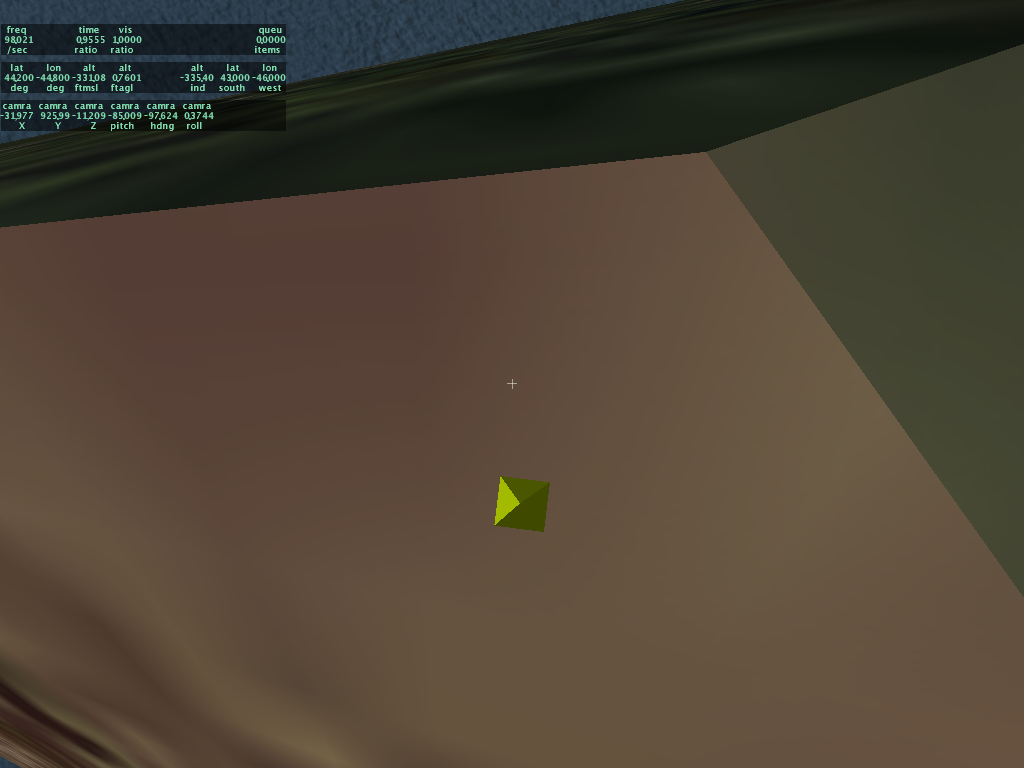
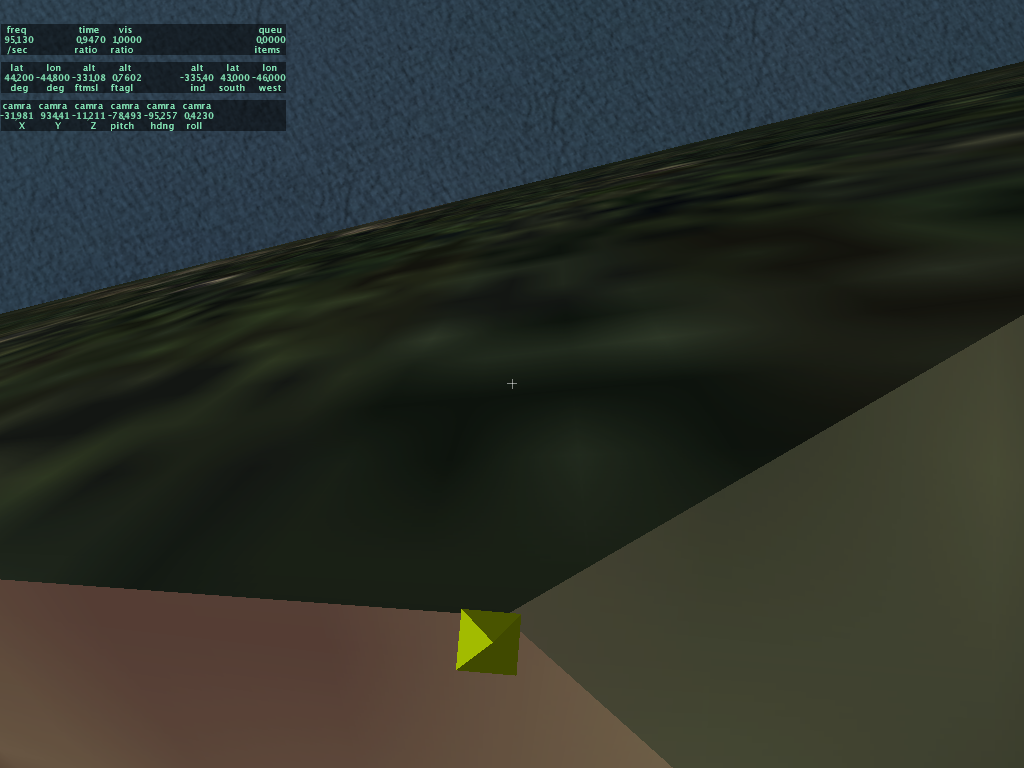 Here's a comparison of placement in 850RC3 and RC4 (coming to a web page near you soon I hope). The object is 5 meters tall and 1 meter across. While RC4 is still not perfect, the error should be small enough that you won't have to hack your scenery package to get good object placement.
That was so fun - let's do it again!
One of the less fun aspects of X-Plane 8.50 was dealing with driver bugs. The basic problem is that PC hardware vendors have a relatively slow cycle for updating the software they bundle with their machines; while the companies that write drivers (ATI and nVidia) have a pretty high latency from when they first ship a card to when the driver support is to the level that X-Plane needs.
The clearest case of this I saw during 8.50 was in the case of PC users with "1.5"*-type ATI drivers. These drivers will cause the terrain textures to swim when hardware-accelerated runway lights are used. Upgrading to "2.0"-type ATI drivers fix the bug. A lot of users were just fine with the 1.5 drivers that came with their machines until X-Plane 8.50 came out, and have only now updated.
8.50 started using pixel shaders; hence the need for newer drivers with bug-free pixel-shader support. But in the future we're going to move from "DSP"-type shaders (that is, shaders written in a very low level language) to shaders writen in a GLSL, a high level abstract way to write shaders.
My fear is that this will induce a second round of "update your driver" for PC and Linux users. (Apple ships new drivers with system update, so users of the current Mac OS can usually just run the updater if it isn't set to update automatically.) But I think it's probably for the best that people use the latest drivers, as ATI and nVidia put software changes in the drivers that increase the throughput of the graphics card, through smarter use of the hardware.
The one group that is really stuck is Macintosh 10.3 users; Apple doesn't provide driver updates to older operating systems. So for example users with 10.3.9 and an ATI card with pixel shaders can't get hardware-accelerated texture lights without buying OS X 10.4. I would go as far as saying that in the future if you have a pixel-shader card it might be worth buying an OS upgrade to unlock the driver support needed to use these features.
Why move to GLSL (and require more driver updates)? In the long term it will provide superior framerate. The current shaders we have now are written in a very low level language, that roughly matches the technology of the first generation pixel-shader cards (Radeon 9700 and GeForce "FX" series). As cards gain new capabilities, Austin and I can't take advantage of the new capabilities using this old language.
GLSL however is a higher level language; when we write a shader in GLSL, the graphics driver translates our shader into code specific to the video card at hand when X-Plane starts. This means that if the video card has some new magic trick it can do, the driver can take advantage of that trick as it translates our shader, resulting in higher framerate. And everyone loves higher framerate. :-)
EDIT: who will be able to use GLSL? Basically any card that has hardware-based pixel shaders** from ATI or nVidia will support GLSL-based shaders if you have a modern enough driver. So if you are seeing hardware-accelerated runway lights in 850 then the GLSL changeover shouldn't cause any more fuss than a driver upgrade if you haven't done one rcently.
Also I should say that if I sound like I am dumping on ATI and nVidia for driver bugs, I shouldn't be; video cards are amazingly powerful, the drivers are very complex, and the technology jumps by huge amounts in a very short time period. I believe the level of driver bugginess we see is a function of fast technology rollout and not the competence of the driver teams, who I am sure are working as hard as they can.
So we, the developers who write programs that use these cards, and you, the users who enjoy these cards, have to ask whether we'd rather have faster framerate and more eye candy or less chaos from our drivers.
*ATI drivers are numbered by ATI to match ATI's internal versioning scheme. But X-Plane can't really see what the ATI driver version number is (e.g. the catalyst version number). So when I say 1.5 or 2.0 I am really talking about the OpenGL specification number that the driver implements. ATI implements newer specs in newer drivers, so we can tell that an ATI driver that supports the 2.0 spec is newer than an ATI driver that supports teh 1.5 spec.
So while I have no idea of either which versions of the ATI drivers had this bug or which version it was fixed in, but we can tell from an X-Plane Log.txt file whether the drivers are going to have this bug.
**Hardware-accelerated shaders? Well, previously I've described a graphics card as either having shaders or not, but this isn't totally accurate. Technically a shader can include a non-programmable shader. Furthermore the driver can present software emulation of a shader. For example, the Intel GMA950 has programmable pixel shaders in hardware. On a Mac the driver reports that it has vertex shaders, but the vertex shadings is actually done by the CPU. (This isn't unreasonable -- all vertex processing is done by the CPU on the GMA950.)
So really when we talk about "cards with shaders" we mean: any nVidia card with a number of 5000 or higher (plus some Quadros, sorry I don't know the numbres on those), and any ATI card with a number of 9500 or higher, and any ATI card with an "X" in it, e.g. X850. At this point we've had shaders in cards for 3 generations, so if you buy a new computer and it has an ATI or nVidia graphics card, it should have fully programmable hardware shaders.
Of course now not all shaders are equal; the newest cards have even more powerful shaders. But this isn't likely to matter a whole lot to X-Plane for a while. But generally I'd recommend buying the mid-range latest generation cards over high-end obsolete cards at this point.
The clearest case of this I saw during 8.50 was in the case of PC users with "1.5"*-type ATI drivers. These drivers will cause the terrain textures to swim when hardware-accelerated runway lights are used. Upgrading to "2.0"-type ATI drivers fix the bug. A lot of users were just fine with the 1.5 drivers that came with their machines until X-Plane 8.50 came out, and have only now updated.
8.50 started using pixel shaders; hence the need for newer drivers with bug-free pixel-shader support. But in the future we're going to move from "DSP"-type shaders (that is, shaders written in a very low level language) to shaders writen in a GLSL, a high level abstract way to write shaders.
My fear is that this will induce a second round of "update your driver" for PC and Linux users. (Apple ships new drivers with system update, so users of the current Mac OS can usually just run the updater if it isn't set to update automatically.) But I think it's probably for the best that people use the latest drivers, as ATI and nVidia put software changes in the drivers that increase the throughput of the graphics card, through smarter use of the hardware.
The one group that is really stuck is Macintosh 10.3 users; Apple doesn't provide driver updates to older operating systems. So for example users with 10.3.9 and an ATI card with pixel shaders can't get hardware-accelerated texture lights without buying OS X 10.4. I would go as far as saying that in the future if you have a pixel-shader card it might be worth buying an OS upgrade to unlock the driver support needed to use these features.
Why move to GLSL (and require more driver updates)? In the long term it will provide superior framerate. The current shaders we have now are written in a very low level language, that roughly matches the technology of the first generation pixel-shader cards (Radeon 9700 and GeForce "FX" series). As cards gain new capabilities, Austin and I can't take advantage of the new capabilities using this old language.
GLSL however is a higher level language; when we write a shader in GLSL, the graphics driver translates our shader into code specific to the video card at hand when X-Plane starts. This means that if the video card has some new magic trick it can do, the driver can take advantage of that trick as it translates our shader, resulting in higher framerate. And everyone loves higher framerate. :-)
EDIT: who will be able to use GLSL? Basically any card that has hardware-based pixel shaders** from ATI or nVidia will support GLSL-based shaders if you have a modern enough driver. So if you are seeing hardware-accelerated runway lights in 850 then the GLSL changeover shouldn't cause any more fuss than a driver upgrade if you haven't done one rcently.
Also I should say that if I sound like I am dumping on ATI and nVidia for driver bugs, I shouldn't be; video cards are amazingly powerful, the drivers are very complex, and the technology jumps by huge amounts in a very short time period. I believe the level of driver bugginess we see is a function of fast technology rollout and not the competence of the driver teams, who I am sure are working as hard as they can.
So we, the developers who write programs that use these cards, and you, the users who enjoy these cards, have to ask whether we'd rather have faster framerate and more eye candy or less chaos from our drivers.
*ATI drivers are numbered by ATI to match ATI's internal versioning scheme. But X-Plane can't really see what the ATI driver version number is (e.g. the catalyst version number). So when I say 1.5 or 2.0 I am really talking about the OpenGL specification number that the driver implements. ATI implements newer specs in newer drivers, so we can tell that an ATI driver that supports the 2.0 spec is newer than an ATI driver that supports teh 1.5 spec.
So while I have no idea of either which versions of the ATI drivers had this bug or which version it was fixed in, but we can tell from an X-Plane Log.txt file whether the drivers are going to have this bug.
**Hardware-accelerated shaders? Well, previously I've described a graphics card as either having shaders or not, but this isn't totally accurate. Technically a shader can include a non-programmable shader. Furthermore the driver can present software emulation of a shader. For example, the Intel GMA950 has programmable pixel shaders in hardware. On a Mac the driver reports that it has vertex shaders, but the vertex shadings is actually done by the CPU. (This isn't unreasonable -- all vertex processing is done by the CPU on the GMA950.)
So really when we talk about "cards with shaders" we mean: any nVidia card with a number of 5000 or higher (plus some Quadros, sorry I don't know the numbres on those), and any ATI card with a number of 9500 or higher, and any ATI card with an "X" in it, e.g. X850. At this point we've had shaders in cards for 3 generations, so if you buy a new computer and it has an ATI or nVidia graphics card, it should have fully programmable hardware shaders.
Of course now not all shaders are equal; the newest cards have even more powerful shaders. But this isn't likely to matter a whole lot to X-Plane for a while. But generally I'd recommend buying the mid-range latest generation cards over high-end obsolete cards at this point.
Monday, October 09, 2006
GIF is Dead!
(This one's gonna be a little bit political I fear. More scenery-related stuff in a few days!)
The last software patent on GIF expired October 1st 2006. It's very rare that I agree with Richard Stallman on much, but I think he presents some strong arguments against software patents in this speech.
X-Plane never used GIF; we've used PNG as our main graphics format for a while now...here's a history of PNG's development, relating to the problem with GIF being patented.
A few comments of my own:
The other case is when the idea is truly useful for its entire lifetime (see GIF, which became the only way to put transparent graphics on the web for a while). In this case the result is a stifling of interoperability and innovation and the patent is to the detriment of the industry and all of its users.
To this end I see libpng as a perfect success: a well-designed file format that's free of patents implemented in an easy-to-use high performance library that's free (X11/MIT license). This encourages and makes it easy for everyone to use PNGs which makes all programs work better. Would we be better off if Austin and I had to invent a proprietary image format (with our own inferior compression) because the major formats were patented?
(Would it be feasable to license such a format? I don't think so - see Stallman's comments on the number of components in a software program vs the cost of licensing.)
The last software patent on GIF expired October 1st 2006. It's very rare that I agree with Richard Stallman on much, but I think he presents some strong arguments against software patents in this speech.
X-Plane never used GIF; we've used PNG as our main graphics format for a while now...here's a history of PNG's development, relating to the problem with GIF being patented.
A few comments of my own:
- One problem with software patents is the "landmine" effect. There's no way to know as a programmer when we've violated a software patent. (Try searching the patent database for an hour or so and I think you will agree with me on this.)
- The bar for non-obvious patents is completely miscalibrated. Software engineering is all about building black boxes out of past work and rearranging them to do new things. Allowing the arrangement of past technologies to be patentable is like allowing a mason to patent a particular stacking of bricks; to most masons it should be obvious how to stack bricks for a certain job, and any good programmer should know how to generalize past ideas to solve new problems. This isn't invention, it's implementation!
- Patents aren't based on natural law and human rights, they're based on fostering creativity. To this end patents are the exact wrong solution for software, where having basic interoperable technologies be free and cheap is good for common infrastructure. Software patents are like someone being able to charge a toll for driving at exactly 55 miles an hour. We want everyone driving the same speed because it's good for the traffic system; similarly we want people to all use the same file formats because it makes all programs more useful.
The other case is when the idea is truly useful for its entire lifetime (see GIF, which became the only way to put transparent graphics on the web for a while). In this case the result is a stifling of interoperability and innovation and the patent is to the detriment of the industry and all of its users.
To this end I see libpng as a perfect success: a well-designed file format that's free of patents implemented in an easy-to-use high performance library that's free (X11/MIT license). This encourages and makes it easy for everyone to use PNGs which makes all programs work better. Would we be better off if Austin and I had to invent a proprietary image format (with our own inferior compression) because the major formats were patented?
(Would it be feasable to license such a format? I don't think so - see Stallman's comments on the number of components in a software program vs the cost of licensing.)
Saturday, October 07, 2006
Stupid Laptop Tricks
First a disclaimer: DO NOT SHAKE YOUR LAPTOP!!! If you shake or thrash your laptop and kill yor hard drive, do not blame me. Laptops are delicate complex electronic devices and should not be jostled, beaten, dropped, abused, or tossed around.
Okay with that out of the way, a stupid plugin trick. This is only for Mac users with a MacBook, MacBook Pro, or possibly some of the newer G4 laptops (although I haven't tested on these).
First, download "SMSHack.xpl". Unzip it and drag the .xpl file into your plugins folder.
Start X-Plane. In an external view, rotate your laptop about 45 degrees to the left and right and 45 degrees up and back. this calibrates "SMSHack" to know the orientation of your computer. You must do this calibration every time you use SMSHack.
Then: fly using your laptop like a yoke. Roll your laptop to roll the plane, and pitch the laptop to climb and descend. Disable the plugin to get normal joystick control back.
How it works: I use a library called Unimotion. (Hrm..it's LGPL...well, source is here then.) Unimotion reads the SMS (sudden motion sensors) on modern Mac laptops. These are three accelerometers that the Macintosh can use to detect it has been dropped; the operating system will try to park the hard drive heads to prevent a disk failure on impact.
Because gravity is a constant acceleration on the laptop, the accelerometers can be used to detemrine the roll and pitch of the laptop. This plugin simply shovels the relative accelerations into the joystick deflections.
Okay with that out of the way, a stupid plugin trick. This is only for Mac users with a MacBook, MacBook Pro, or possibly some of the newer G4 laptops (although I haven't tested on these).
First, download "SMSHack.xpl". Unzip it and drag the .xpl file into your plugins folder.
Start X-Plane. In an external view, rotate your laptop about 45 degrees to the left and right and 45 degrees up and back. this calibrates "SMSHack" to know the orientation of your computer. You must do this calibration every time you use SMSHack.
Then: fly using your laptop like a yoke. Roll your laptop to roll the plane, and pitch the laptop to climb and descend. Disable the plugin to get normal joystick control back.
How it works: I use a library called Unimotion. (Hrm..it's LGPL...well, source is here then.) Unimotion reads the SMS (sudden motion sensors) on modern Mac laptops. These are three accelerometers that the Macintosh can use to detect it has been dropped; the operating system will try to park the hard drive heads to prevent a disk failure on impact.
Because gravity is a constant acceleration on the laptop, the accelerometers can be used to detemrine the roll and pitch of the laptop. This plugin simply shovels the relative accelerations into the joystick deflections.
Friday, October 06, 2006
The X-Plane 850 Framerate Test
Now that I've covered how to use X-Plane with command-line options and how to write up performance bugs, we can discuss the framerate test, why it exists, who should use it, etc.
The X-Plane built-in framerate test serves three purposes:
But the process was very time consuming and error-prone. The frame-rate test simplifies things for everyone; the test is standardized and requires no user intervention; it runs the exact same settings every time and is not subject to software configuration issues. The reports are automatically printed out and require no observation.
We are adding the test into 850 so that in the next release we can compare to 850 and be sure we're on track. I only wish we'd have the test in 840!
Should I Be Using the Framerate Test?
If you are not a developer/programmer and you are not asked to use the framerate test by a programmer (for example, in response to a bug report or after emailing tech support) there is no need for you to run the framerate test. You can run the test and email your friends (especially if you have higher framerate than they do) but if you have problems with the framerate test and you are using it "recreationally" please do not file a buf report or query tech support for help. The framerate test is an internal development tool; X-Plane is meant to be used to fly!
What the Test Does:
The framerate test runs X-Plane with preference reading/writing disabled, and it changes the 'default' configuration (e.g. X-Plane's configuration without preferences) based on command-line input. This gives us a specific setup of the sim regardless of how the sim was last used. The preferences are not saved to disk when the test is done, so there is no need for a user to delete preferences to get solid test numbers. User alerts are not shown (just logged) so that the test can be run from a shell script automatically. The sim logs info and quits when it finishes.
The performance test can run in two modes: analysis mode and pass-fail mode. In analysis mode, the sim is run in three 30-second tests: panel view, forward view, and forward-view paused. These three numbers help us tell the relative framerate loss due to the panel and the flight model. The fps-test is primarily aimed at the 3-d rendering engine, but on a CPU-limited machine the flight model can have a huge impact, and on a PCI/AGP bandwidth limited or VRAM-limited machine the panel can cause a noticable slowdown. (The panel also hurts if a machine is extremely blend/fill-rate limited, like a Rage 128, but you shouldn't be using X-Plane 8 on a Rage 128!)
The pass-fail test runs a single test, paused with the panel to gauge pure framerate, and returns 0 or 1 (as a command-line shell app) to the calling script based on whether the sim passes a minimum framerate. The pass-fail test is designed for automated testing; you can put X-plane into a series of standardized tests and automatically send an email if the sim's performance falls below a certain minimum.
How to Use the Framerate Test:
First, see my instructions on how to use X-Plane with a command-line option. In these examples I will simplify the X-Plane executable name; refer to the instructions for your specific operating system.
To run the frame-rate test, use this:
To run the pass-fail test, you add a second command-line option:
The framerate test number is up to 3 digits controlling various aspects of the sim:
The X-Plane built-in framerate test serves three purposes:
- To let us compare our current performance to past performance easily (so we can detect code that hurts sim performance early in our development cycle). This also lets us rapidly determine whether bug reports of "my framerate sucks" are valid or not.
- To allow graphics-card driver writers to use X-Plane to benchmark and regress changes to their drivers.
- To give us an easy way to get "hard numbers" in-field - that is, when a user emails us with a tech support request saying "my sim is slow", the fps test allows us to determine whether the problem is based on configuration.
But the process was very time consuming and error-prone. The frame-rate test simplifies things for everyone; the test is standardized and requires no user intervention; it runs the exact same settings every time and is not subject to software configuration issues. The reports are automatically printed out and require no observation.
We are adding the test into 850 so that in the next release we can compare to 850 and be sure we're on track. I only wish we'd have the test in 840!
Should I Be Using the Framerate Test?
If you are not a developer/programmer and you are not asked to use the framerate test by a programmer (for example, in response to a bug report or after emailing tech support) there is no need for you to run the framerate test. You can run the test and email your friends (especially if you have higher framerate than they do) but if you have problems with the framerate test and you are using it "recreationally" please do not file a buf report or query tech support for help. The framerate test is an internal development tool; X-Plane is meant to be used to fly!
What the Test Does:
The framerate test runs X-Plane with preference reading/writing disabled, and it changes the 'default' configuration (e.g. X-Plane's configuration without preferences) based on command-line input. This gives us a specific setup of the sim regardless of how the sim was last used. The preferences are not saved to disk when the test is done, so there is no need for a user to delete preferences to get solid test numbers. User alerts are not shown (just logged) so that the test can be run from a shell script automatically. The sim logs info and quits when it finishes.
The performance test can run in two modes: analysis mode and pass-fail mode. In analysis mode, the sim is run in three 30-second tests: panel view, forward view, and forward-view paused. These three numbers help us tell the relative framerate loss due to the panel and the flight model. The fps-test is primarily aimed at the 3-d rendering engine, but on a CPU-limited machine the flight model can have a huge impact, and on a PCI/AGP bandwidth limited or VRAM-limited machine the panel can cause a noticable slowdown. (The panel also hurts if a machine is extremely blend/fill-rate limited, like a Rage 128, but you shouldn't be using X-Plane 8 on a Rage 128!)
The pass-fail test runs a single test, paused with the panel to gauge pure framerate, and returns 0 or 1 (as a command-line shell app) to the calling script based on whether the sim passes a minimum framerate. The pass-fail test is designed for automated testing; you can put X-plane into a series of standardized tests and automatically send an email if the sim's performance falls below a certain minimum.
How to Use the Framerate Test:
First, see my instructions on how to use X-Plane with a command-line option. In these examples I will simplify the X-Plane executable name; refer to the instructions for your specific operating system.
To run the frame-rate test, use this:
Where the number is a fps-test "test number". (I will explain the numbers in detail below.) This will run the 3-part analysis test and quit. You can add other command-line options as well; for example, to compare performance with and without VBOs you can do this:X-Plane --fps_test=2
(Side note: on fps-test 1 pass-fail I see 71 fps on my MacBook Pro with VBOs and 59 without. Turning off VBOs definitely hurts performance, so only users with serious driver bugs should be using the --no_vbos option.)X-Plane --fps_test=2 --no_vbos
To run the pass-fail test, you add a second command-line option:
This will run the pass-fail test and return a positive result if the frame-rate is at or above 20 fps. For example, you could write a test like this:X-Plane --fps_test=3 --require_fps=20
Test Numbers:X-Plane --fps_test=2 --require_fps=20 || echo We were below 20 fps!
The framerate test number is up to 3 digits controlling various aspects of the sim:
- The ones digit can be 1-3 and selects the rendering settings; 1 = very low and 3 = very high. You can view the rendering settings while the fps test its running (it will ruin your test results of course to put up dialog boxes).
- The tens digit can be 0-6 and programs in a variety of weather and visibility conditions.
- The hundreds digit can access a few special features: 100-series tests use a far view angle and 200-series tests run at night.
Thursday, October 05, 2006
A Tale of Three Operating Systems
In a vain and foolish attempt to prove that I am the uber-nerd, I have configured my MacBook Pro to boot Mac OS X 10.4, Windows XP Home SP2, and Ubuntu Linux 6.06. It took a while to get everything set up, but all three now run X-Plane with hardware acceleration.
This provides a unique chance to compare the performance of the sim varying old operating-system factors (the OS, the drivers, and the compiler). The machine is a 2.16 ghz DuCore MacBook Pro with 2 GB of RAM and a 256 MB ATI X1600 card.
So without further delay, here are the numbers. Speed is in fps for frame-rate tests 1-3 (1 is lowest settings, 3 is very very aggressive). Each set of fps is for panel view, forward-no-HUD view, and the same view paused. Load times are in seconds for the KSBD demo DSF. The second load time is to reload the same scenery - the times are much faster on all 3 OSes because of the disk cache.
Drivers are not tweaked; this is simply the ATI binary drivers for Linux, whatever Apple ships in BootCamp (some 2.0 series ATI drivers) for Windows, and the 10.4.8 drivers for Mac, none tweaked in any way at the OS/control panel level. For Linux I disabled VBOs because they cause graphic corruption in some cases and slow frame-rate. This is probably a Linux/ATI driver bug.
This provides a unique chance to compare the performance of the sim varying old operating-system factors (the OS, the drivers, and the compiler). The machine is a 2.16 ghz DuCore MacBook Pro with 2 GB of RAM and a 256 MB ATI X1600 card.
So without further delay, here are the numbers. Speed is in fps for frame-rate tests 1-3 (1 is lowest settings, 3 is very very aggressive). Each set of fps is for panel view, forward-no-HUD view, and the same view paused. Load times are in seconds for the KSBD demo DSF. The second load time is to reload the same scenery - the times are much faster on all 3 OSes because of the disk cache.
Drivers are not tweaked; this is simply the ATI binary drivers for Linux, whatever Apple ships in BootCamp (some 2.0 series ATI drivers) for Windows, and the 10.4.8 drivers for Mac, none tweaked in any way at the OS/control panel level. For Linux I disabled VBOs because they cause graphic corruption in some cases and slow frame-rate. This is probably a Linux/ATI driver bug.
PLATFORM Mac WIN LINUXAnalysis:
Load/Reload 2.77/1.31 5.02/1.33 3.05/1.04
FPS Test 1 65/71/80 64/69/88 56/62/62
FPS Test 2 49/55/54 50/56/56 34/37/37
FPS Test 3 15/15/15 16/16/16 4/4/4
- The Mac has the fastest disk performance; both Mac and Linux are significantly faster than Windows in raw loading. For reloading a file all operating systems are about the same, but it's the load-without-cache case that counts.
- Windows has the highest frame-rates; slightly faster than Mac but quite a bit more than Linux. The lack of safe VBOs on Linux could account for this.
- In the case where the fps didn't rise when the sim was paused, the limitation is with the video card - not surprising for tests 2 and 3 where there's a lot of antialiasing, anisotropic filtering, and objects.
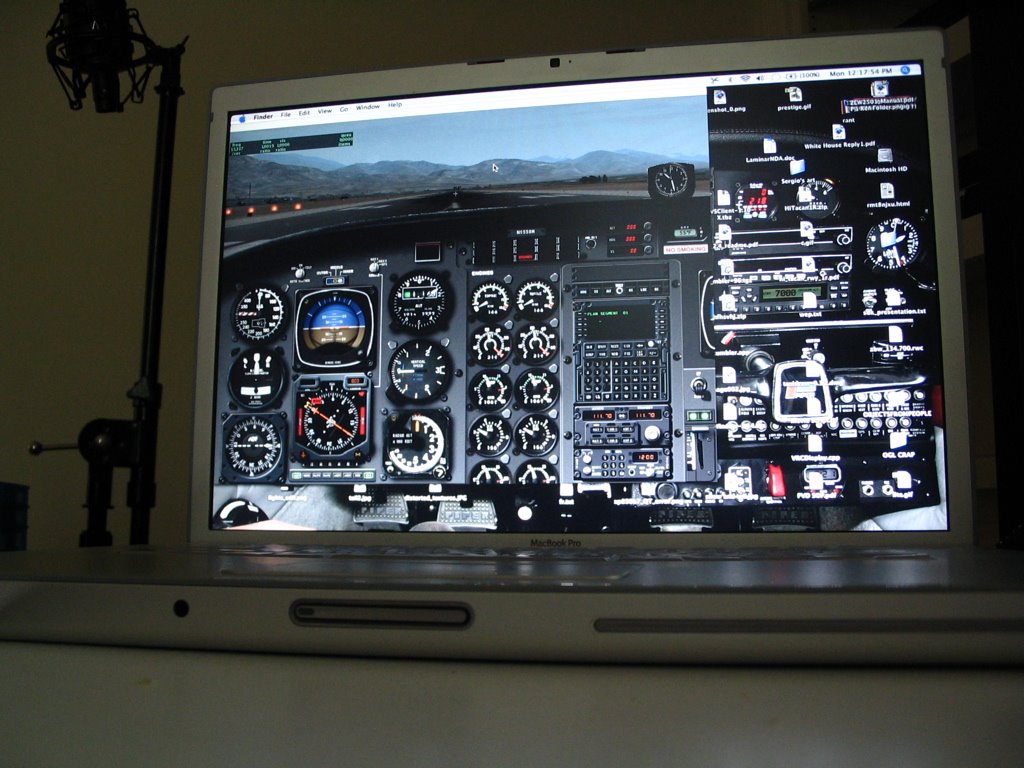
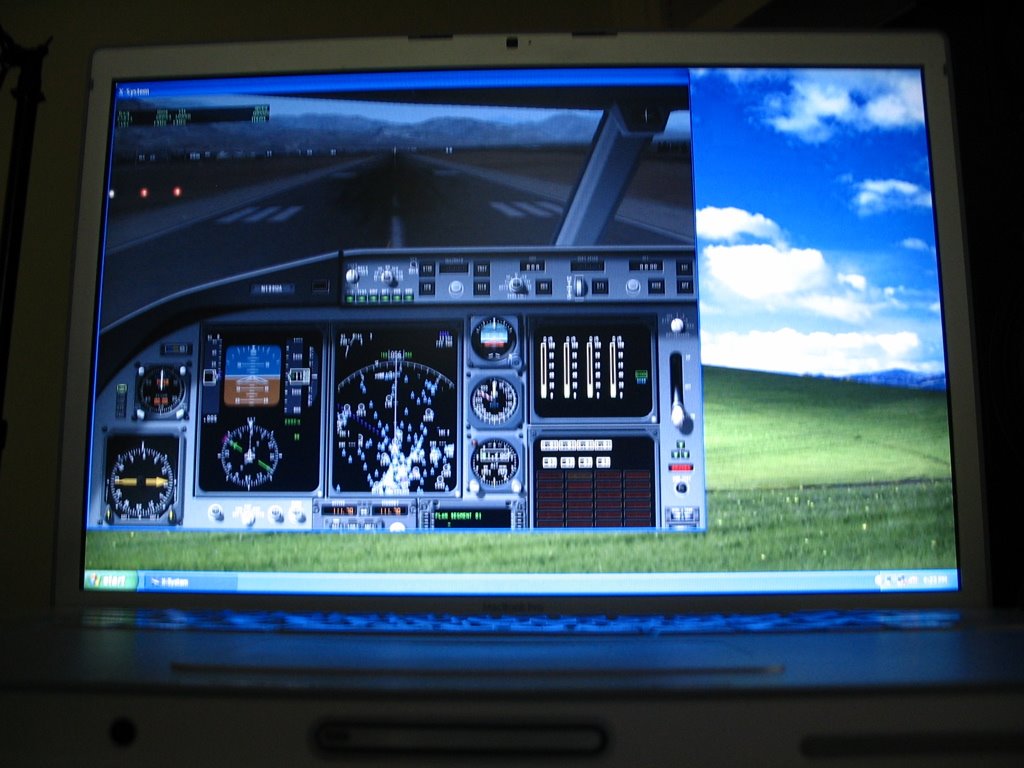
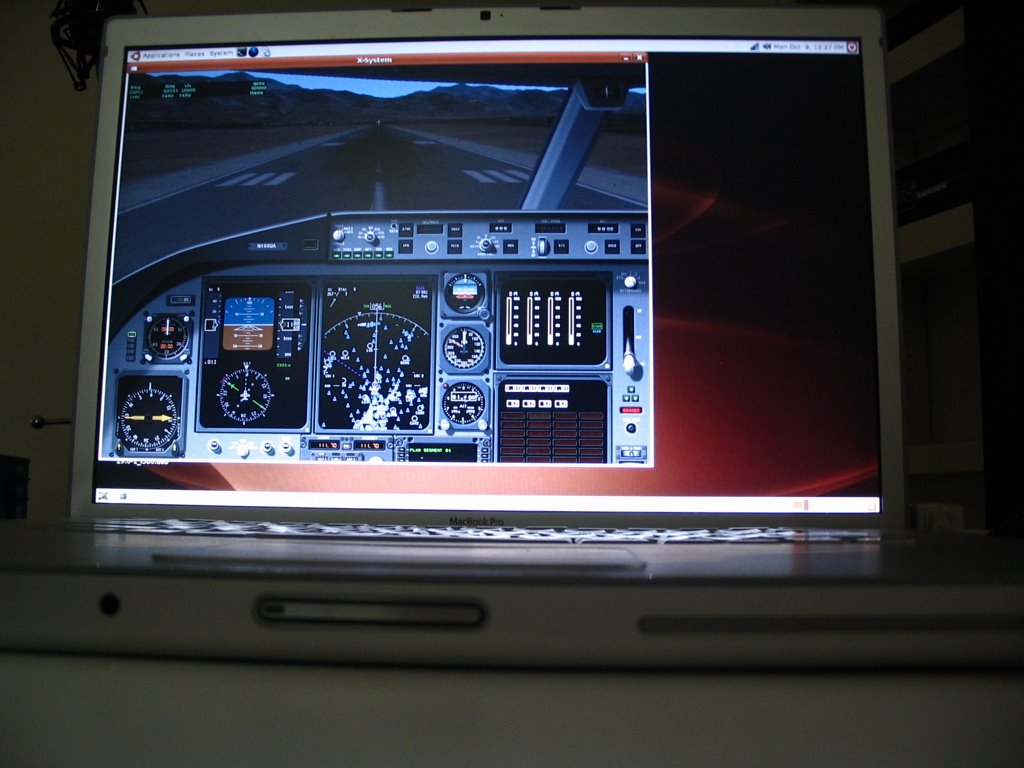
HOWTO: Use Command-Line Options in X-Plane
Normally you just double-click X-Plane to launch the sim. But X-Plane 850 has some hidden command-line options. We provide these for in-field debugging; if you hit a problem such as a bad video driver you can trigger special options within the sim that aren't exposed in the settings dialog boxes.
Macintosh Users:
To run X-Plane using command-line arguments, you must launch X-Plane using terminal.
Windows Users:
To Lauch X-Plane from a DOS prompt you will have to...
Linux Users:
X-Plane can be launched like any other command-line tool; you may need to prefix it with ./ if you don't have the current working directory in your search paths. For example:
Command Line Options
Generally X-Plane command line options have full names and two dashes. Some require parameters, as in =1. Order does not matter and you can use as many options as you want. Some examples (simplifying the application name, which varies by version and OS):
Some Typical Examples
A number of drivers crash when X-Plane uses VBOs, particularly on Linux. If you can run every application except X-Plane itself, you may want to try:
Macintosh Users:
To run X-Plane using command-line arguments, you must launch X-Plane using terminal.
- Open the utility "Terminal"; it can be found in the Utilities folder (within the Applications folder). Terminal gives you a command-prompt.
- Drag your X-Plane application into the terminal window. The command line will list the names of all of the folders leading to your copy of X-Plane using / for directories. All spaces will be preceded by \ characters.
- Delete the extra space at the end and add the following to the command-line:
Contents/MacOS/X-Plane
- After the word X-Plane you can include command-line options.
This would launch X-Plane 850 RC-3 (in the X-Plane 850 folder of my hard drive "GIS") using the --no_sprites option./Volumes/GIS/X-Plane\ 8.50\ RC-3/X-Plane\ 850\ RC-3.app/Contents/MacOS/X-Plane --no_sprites
Windows Users:
To Lauch X-Plane from a DOS prompt you will have to...
- Pick "Run..." from the Start menu. Type cmd (3 letters) for the name of the program and press return. This will open up a DOS prompt.
- Type cd and a space and then drag your X-Plane folder into the DOS prompt window (the full path of the file will be typed). Press return. This will move your command prompt to the X-Plane directory.
- Drag the X-Plane application into the DOS prompt window. You will see its full name in quotes including the hard disk and directories separated by back-slashes.
- You can then add any additional command-line options.
(It is necessary to change directories on Windows to make sure that Log.txt and other files are put in the right place. On Mac these files always end up in the X-System directory.)"X-Plane 850 RC-3.exe" --fps_test=1
Linux Users:
X-Plane can be launched like any other command-line tool; you may need to prefix it with ./ if you don't have the current working directory in your search paths. For example:
On my distribution (Ubuntu with GNOME, stop your snickering!) it is not possible to simply drag the application into a terminal because the spaces in the file paths will not be properly escaped.cd /home/bsupnik/X-Plane\ 8.50\ RC-3/
LD_PRELOAD=/usr/lib/libalut.so ./X-Plane-i586 --fps_test=1 --require_fps=20
Command Line Options
Generally X-Plane command line options have full names and two dashes. Some require parameters, as in =1. Order does not matter and you can use as many options as you want. Some examples (simplifying the application name, which varies by version and OS):
Rather than document the options here, use the --help option to list all command-line options in the current version of X-Plane.X-Plane --no_sprites
X-Plane --fps_test=2 --no_pixel_counters
Some Typical Examples
A number of drivers crash when X-Plane uses VBOs, particularly on Linux. If you can run every application except X-Plane itself, you may want to try:
Some drivers cause texture corruption when hardware-accelerated runway lights are used; you can work around this with:X-Plane --no_vbos
EDIT: the Windows version won't show the --help string in the DOS window by default, but StormRunner pointed out to me that you can do this:X-Plane --no_sprites
which routes the output to the DOS window."X-Plane.exe" --help | more
Subscribe to:
Posts (Atom)